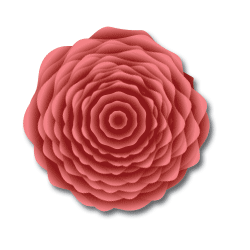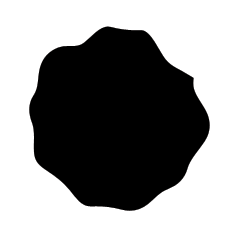
Create a new document (250*250). Use whatever tool U want and create a shape like mine above. I used the pen tool but it works all right with the lasso tool or pencil tool. Fill it with a color of your choice.
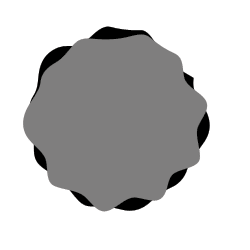
Create a new layer (Ctrl+Shift+N) and draw yet another shape like mine above.
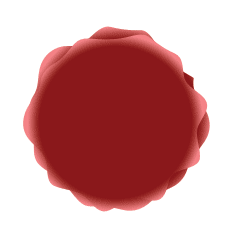
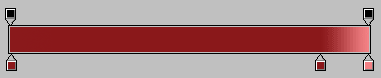
Now you are going to add the layer style gradient overlay. Click
 and choose gradient overlay. Click on the gradient to make the gradient editor visible. Click the color boxes and change the colors to mine. If you want a new box just click below the gradient. Link the two layers in the layer palette and merge them (Ctrl+E).
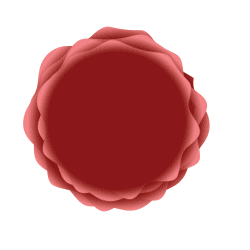
Drag the layer in the layer palette to
 duplicate it. Push Ctrl+T to transform the layer. Use the option meny to scale it (W=90% and H=90%) and rotate it a bit. If you can't see the option meny go to Window>>Options.
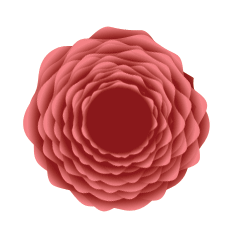
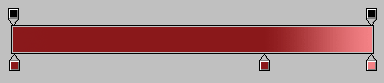
Continue to duplicate the new layer, scale and rotate it. When you have done this a couple of times it can be good to change the gradient on the new layers a bit. Just move the right dark red box to the left. Done, print and you have a wonderful rose.