Create a cool looking amulet type drawing in photoshop.
Step 1.
Create a new photoshop image 300 x 300 with a transparent background.
Step 2.
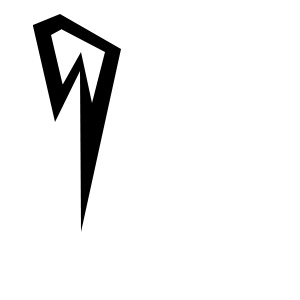
Select the polygonal lasso tool. Draw a shap like the one below.
Step 3.
Fill your selection with black. Edit -> Fill -> Black.

Step 4.
Select the polygonal lasso tool again and make a smaller selection within the first. Delete the inner
selection.
Step 5.
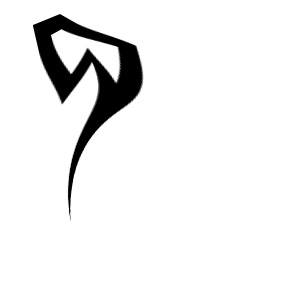
Deselect the selection, and select the image layer. Apply Filterr -> distort -> twirl. Play around with the
setting to get the right twist.
Step 6.
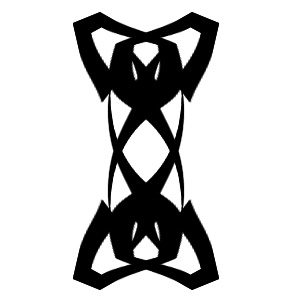
Duplicate the current layer ( right click the layer + duplicate layer).
Step 7.
Next flip the duplicate. With the duplicate layer selected Edit -> transform -> flip horizontal.
Adjust the layers so the they are lined up properly. When you are happy with the alignment, press ctrl + e to
merge the 2 layers together.

Step 8.
Repeat steps 6 and 7 and use flip vertical.
Step 9.
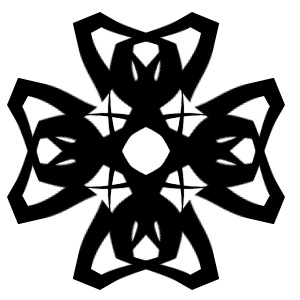
Repeat steps 6 and 7 and use rotate 90° CW or CWW.
Step 10.
Duplicate the layer, and apply Filter -> Blur -> Gaussian blur 4.0 - 5.0 make sure it's
the bottom layer.
Step 11.
Next right click the top layer, and choose the blending options. Apply drop shadow, inner glow and a
gradient overlay of black to white. Set the overlay opacity to 40% - 60%. You can play around with these settings
to create different effect.