Ok, we’re going to start out in Illustrator. It helps to have a wacom, but don’t worry if you don’t have one.
Open the “Brushes” pallette, (WINDOW > BRUSHES) and create a new brush by clicking the new brush button.
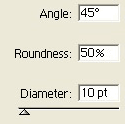
Use the numbers pictured here and click OK.
Make sure your fill color is empty (red slash) and your stroke color is black. We’ll change it later.
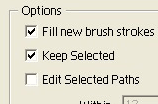
Also, double click the brush tool and make sure “Edit Selected Paths” is NOT checked. Now with the brush tool, throw down your basic bomb. I am using the word “SOULJA.”

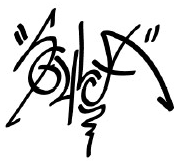
After a few attempts at scribbling something phat, we have a nice “SOULJA” ala permanent marker. That’s cool, but we want one that more resembles a nice rattle-can bomb, so let’s save it and open it in photoshop.
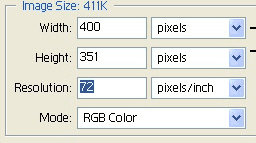
After you’ve saved your .ai file, open Photoshop and then open your .ai file in Photoshop. Use a setup something like this, and use RGB color. (It will probably default to CMYK).
Now that you have it open, you don’t have any margin to work with, so hit CTRL + T and use the bounding box to scale the layer down. Hold SHIFT to keep the same aspect ratio.
After that, create a new layer beneath the bomb layer and fill it with white. (ALT + DELETE is the shortcut for fill).
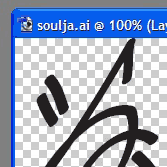
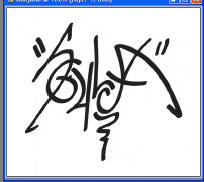
Here it is scaled down with a white background. Now to start messing with it.
Double click your bomb layer, and add a drop shadow, gradient overlay, and a fat black stroke. Play with the settings until you get something you like. I have a stroke of about 5, a drop shadow size of about 18, and I just used one of the preset gradient fills.
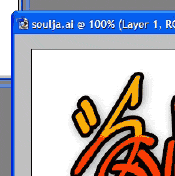
Try different things to add some texture to your bomb so that it doesn’t look so plain. Make it your own!