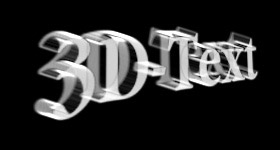
This tutorial will teach you how to make 3D text with Photoshop.
1. We would start with a simple New File of 280X150 pixels. Press D to set up the background and foreground colors to default. Press Alt+Backspace to make background black. Then with the help of the Horizontal Type Tool [T] write your text (with this tutorials we will use “3D Text”) in white color using such settings: font family - Garamond Narrow, font size – 60pt, font style – Bold. After accomplishing all this you will need to raster your image for further work go to Layer > Rasterize > Type to make it.
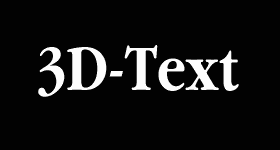
2. Make your image similar to the picture below. Choose Edit > Transform > Perspective to make it. All this changes will be done in a new layer which you will need to make a copy of. The simplest way of copying the layer is to drag it to the ‘Create New Layer’  icon with Layers palette. Make the layer invisible. Switch to the background layer and press Ctrl+Shift+E to merge visible layers.
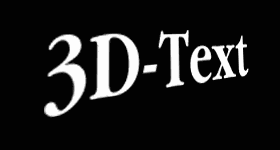
3. With this step you will make your text look like the picture below. Use Motion Blur filter (Filter > Blur > Motion Blur) with Angle -20 and Distance 20 pixels.
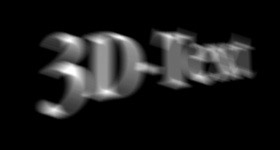
4. The next filter you’ll need is ‘Find Edges’ (Filter > Stylize > Find Edges). The result of using this filter can be seen on the picture below. To invert the picture and make it look like below press Ctrl+I.
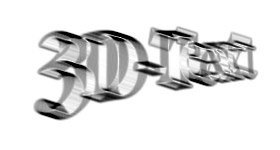
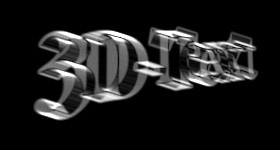
5. Make the layer with the copy of the text visible again and set opacity for this layer 70%. Press V to switch Move tool. Put the text layer in front of the 3D text. Then make a copy of the text layer (see above how to make it). Set 30% for the opacity of the new layer and put it with the backside of the 3D text. That’s it!