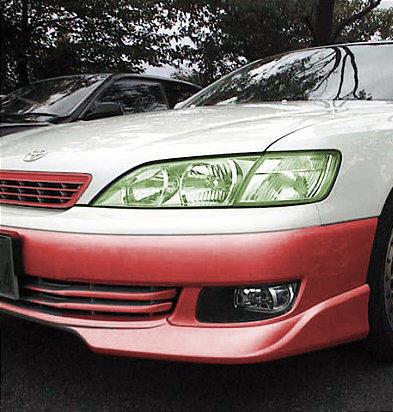
This tutorial will explain the basics to using the want to select and colorize images.
In this tutorial we will be using the following image.
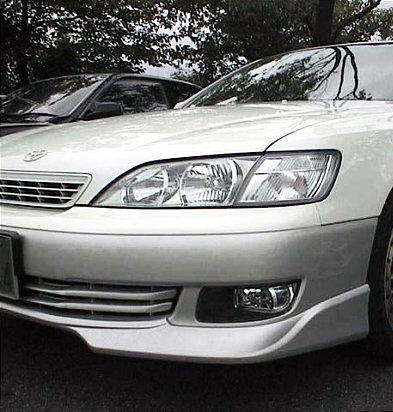
1. Select your wand tool. Make sure these settings are set:

2. Next you want to start selecting the part you want colored.
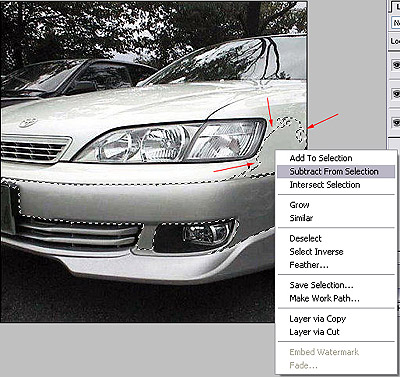
If you run into a point where you have too much selected, just right click on the area and hit "Subtract From Selection". Sometimes you will have to mess around with it to get it right.
3. This is what it should look like when you are done with that step.
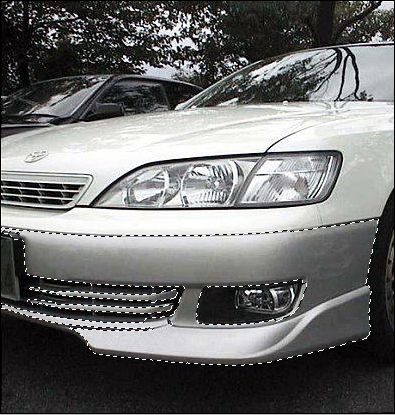
4. Now, hit Ctrl+U to go to the Hue/Saturation options. Check colorize.
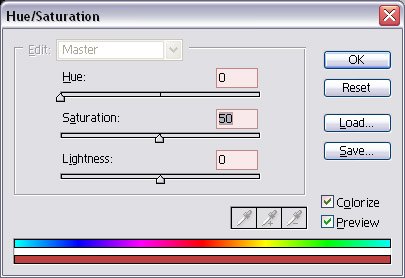
It should now look like this:
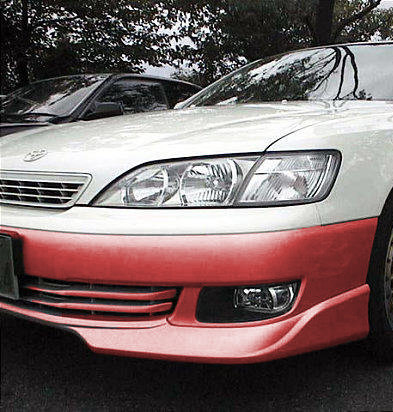
5. You're done! You can even color other parts of the car including the grill and lights.