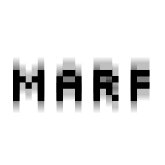
1. Create a new 400x400 pixel document and name it Blurry Text. Now press D and then X, then fill the layer with white. Name this layer 'background'. Make a new layer name it 'text', then select the horizontal type mask tool and click in your image, then type the word(s) or letters you want to blur. Then once your done, click the check box, press D, and fill the selection with black.
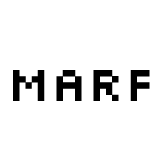
2. Now, copy the text layer. The copied layer will be automatically named 'text copy'. We don't want to edit this, so select the 'text' layer, then apply a motion blur with settings [Angle: 90°, Distance: 35px]. Note that the distance setting can be adjusted depending on how big you make your text. My text was size 50px I believe. There you have it, a cool, easy little motion blur effect which can be added to more than just text.