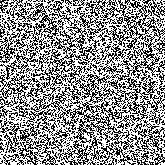
1. Create a new 165x165 pixel document with a resolution of 100 and name it Mini-Techno. Now press D then X and fill the document (with White). Now apply a noise filter with settings [Amount: 300%, Distribution: Gaussion, Monochromatic: Checked].
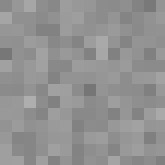
2. Now apply a mosiac filter with settings [Cell Size: 12]. Depending on the size of your image or how large you want the lines you may want to change the cell size.
3. Next, you glow the edges with settings [Edge Width: 2, Edge Brightness: 10, Smoothness: 5]. If you want more smooth edges on the lines just make the Smoothness setting higher.
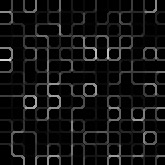
4. Now you can add color to the image by, creating a new layer and filling it with a color of your choice. Then set that layers blending mode to 'Color'. There you have it, a neat little mosiac lines.