

Lets make a little something cool! With this tutorial I'll show you how to make a cool swirled effect. This tutorial is really easy, in fact I don't think anyone will struggle at all. Anyway here we go!
Start by making a document, I've made mine 768x576 with a background of #253723 - Actually you can chose any background you want.
Grab your brush and select any brush you want from your brush picker. I chose this one:
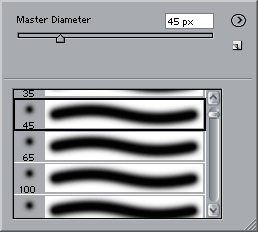
45px wide, I'd say that was about enough for this tutorial, if you want to make your twirl bigger/smaller then increase/decrease the brush size.
Create a new layer.
Now make line down your page. To keep the line straight hold SHIFT as you're drawing the line.
Here's what I got,

Now we have our little line we can perform the magic!
Go ahead and go to Filter>Distort>Twirl and set the following settings:
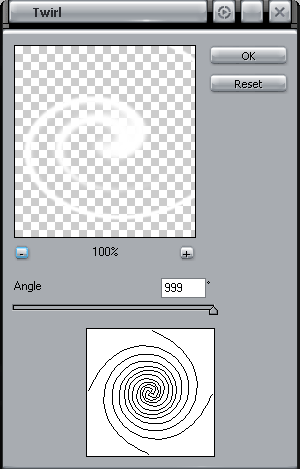
You can play around with this until you're happy, 999 just happened to look the best for my twirl. Play about and see what kind of effect you can come up with.
Here's what I ended up with after applying the twirl.
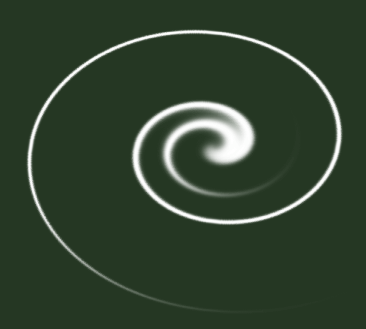
So there you have it, a nice smooth twirl. Here's what I came up with after a bit of playing,
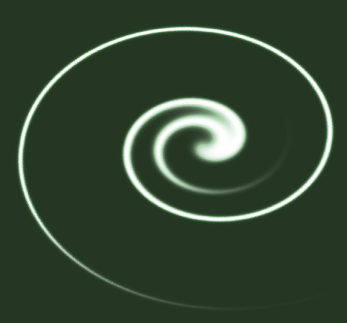
All I done was added an outer glow and set the mode to color dodge, hope I helped you!
