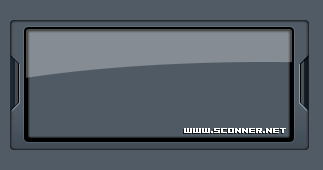
Quite a few people ask me how do I make cool content boxes. This tutorial will show you how to make a very nice content box for your web site.
Start by creating a new document, I'm using a 720x540 with a background of #515B65
Start by using your Rounded Rectangle Tool to create a relatively small shape on your canvas. Set the following settings on your box,
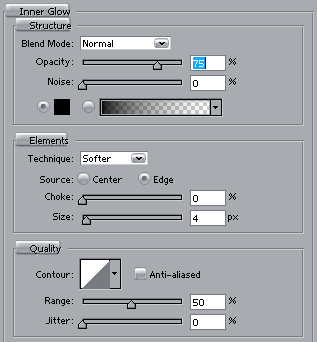
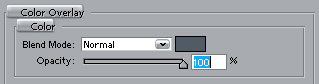
The color on this is just the same as your background color.
here's how my shape looks,

CTRL+Click your box and go to Select>Modify>Contract and contract by 2px
Once you've done this, create a new layer above your shape and take your gradient tool, set your foreground color to #3A4249 and make a small gradient at the bottom of your shape.
Here's mine,

This just ads a nice little feel to the box.
Next create a new layer and make a selection like below using your Polygonal Lasso Tool, fill this with black,

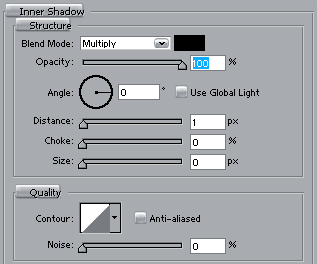
Now apply the following layer styles to your shape,
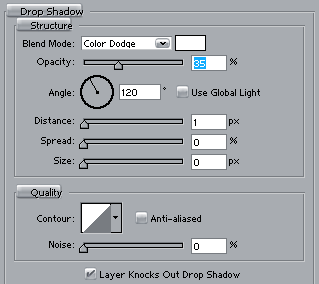
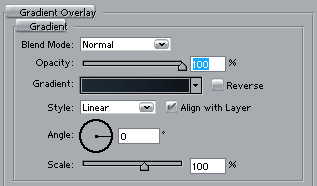
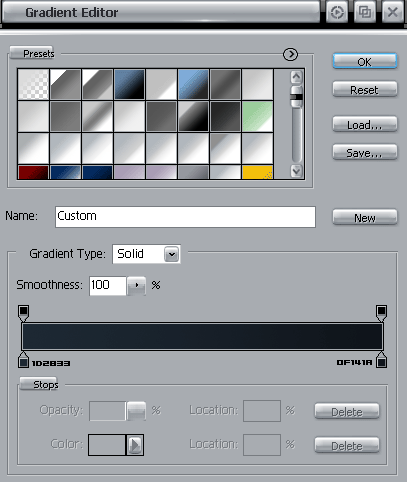
This is a custom gradient, find it below,
Now you have done this you should have something that looks like this,

Next you need to right click the shape layer and duplicate it, once you've done this you need to click Edit>Transform>Flip Horizontal this will turn the shape around. Move the shape across to the other side of the content box and you should end up with something like this,

So now we've got our sides we need to apply a shine to them, CTRL+CLICK the layer and go to Select>Modify>Contract and contract it by 1px then make a new layer and fill it with white. with your new layer set the Opacity to 20% then trim down the sides with your Rectangular Marquee Tool.
Your box should now look like this,

Again, duplicate the layer and flip it horizontal, then move it over to the right to join the other shape, your shape will now look like this,

Now our content box is starting to take shape.
Set your foreground color to Black and take your Rounded Rectangle Tool and create a rectangle in the middle of your box as shown below,

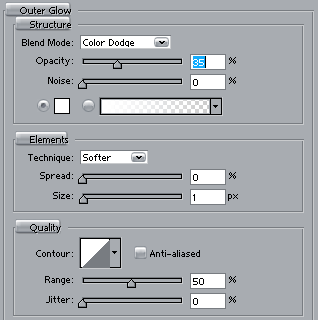
Now set the following layer style on the box,
CTRL+CLICK your black box and go to Select>Modify>Contract and contract it by 4px
Create a new layer above the black box and fill it with #505A64
Set the following layer styles,
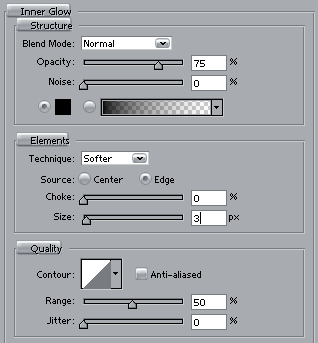
Now your box should look like this,

All I'm going to do now is apply a shine, simply CTRL+CLICK the Black layer and contract it by 2px create a new layer above everything and fill it with white. Set the opacity on the layer to 30% and make a shine effect. For those who don't know how to create a shine effect, ready my Shine tutorial.
Here's my final result,