Today let's go Grunge ' as Template Monster has in template #7500.
In order to make any Grunge interface, you must have the complete set of Grunge brushes. They can be downloaded from the Internet free of charge and installed in your version of Photoshop. Also you will need a few examples of texture.
So, let's suppose we already have a set of brushes. Let's begin.
1. Let's make a document in Photoshop, with the following settings:
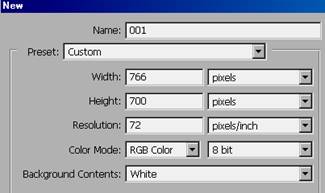
2. Let's make a new layer and fill it with color #CD974F.
3. We'll take any image of a metal object. In my case I used the following image:
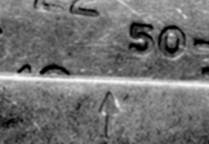
3. We'll add it over the previous layer.
4. Further, let's change blending options for this layer:
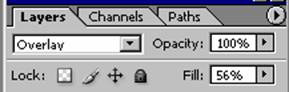
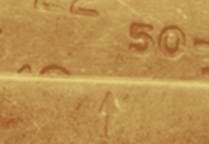
Doing this should give us the following effect:
5. Let's create a new layer. Moving to the tools panel, we'll choose a brush. The availability of specific brushes depends on your personal setup in Photoshop. Make sure that your default background color is black. In my case I chose the following:
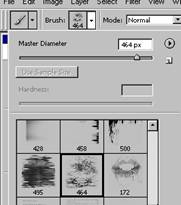
Zoomed it looks like this:
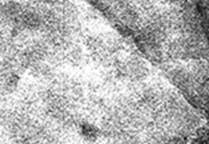
By making one stroke with the brush, we get such result:
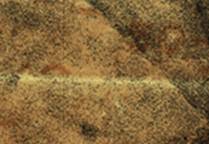
In the blending options of this layer set OVERLAY mode.
You should achieve the following result:
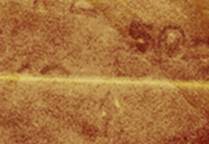
6. Next we'll take any texture from an individual piece of clipart (sand, concrete or any other monotone building material) and place it atop all else. I chose this:
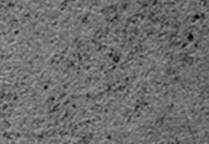
Now let's turn our attention to the layer properties. Use the following settings:
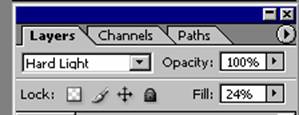
We should get this result:
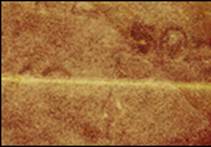
7. We'll take the next texture and add it to the top. In blending options of this layer set OVERLAY mode.
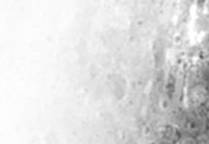
We'll get the following result:
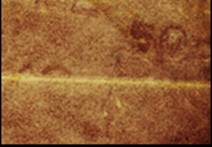
(Note: To achieve the desired effect you can add your texture several times to the top of previous ones, changing blending modes).
Here's how we transformed the image in a Grunge style template. Groovy, isn't it?
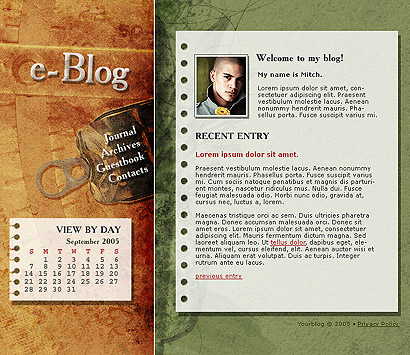
click to view template |
See more grunge style templates.
