

When preparing a tutorial, a screenshot for a book or magazine article, or an illustration for a technical document, it's not uncommon to identify a critical area with a circle or a square. Here's how to add a little flair to that emphasis.
Let's say you're discussing a screenshot of Photoshop's Layers palette and you want to make sure that your point is clear. Perhaps you're explaining that a layer mask thumbnail should be selected, rather than the thumbnail for the layer itself. One way to do that is with a colored circle. Make a selection around the item, then use the Edit> Stroke command. You can even use the Line shape tool to add an arrow for greater emphasis.
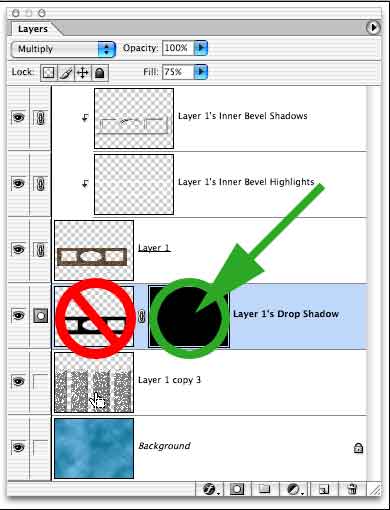
NOTE: If you're using the Stroke command with a rectangular selection and want sharp corners, use the Inside option. If you want gently rounded corners, use Outside.
To spice up that effect a bit, work on a separate layer and add a bevel and/or drop shadow layer effect.
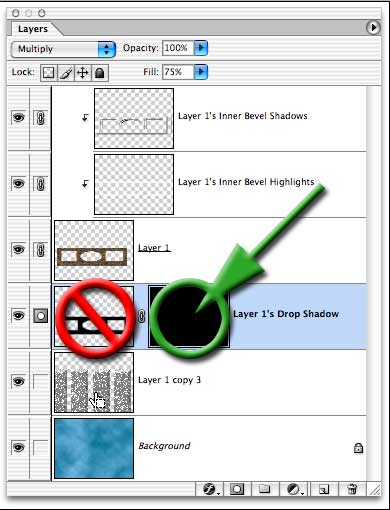
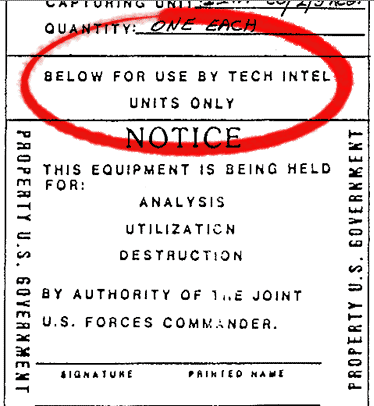
But here's how to do something special, something (not yet) common: a "hand drawn" effect.
1. Add a new layer (optional, but highly recommended).
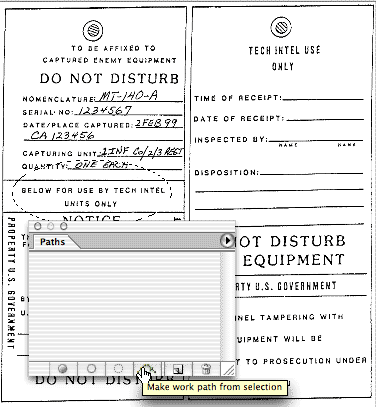
2. Make a round or elliptical selection around the element you need to highlight.
3. At the bottom of the Paths palette, click the button that converts
the selection to a work path. If you think you might need to re-use
this path later, double-click the name Work Path in the Paths palette
and name the path to save it.
4. Select the Brush tool.
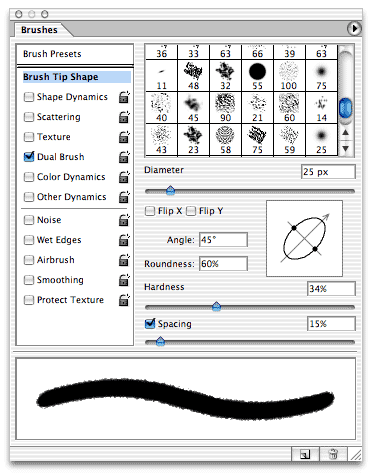
5. In the Brushes palette, select your brush tip, hardness, roundness
and other such options. In this example, we'll show an angled round
brush, using the Dual Brush option and adding a "spatter" brush to make
the edges a bit irregular.
Clicking
the Stroke Path button at the bottom of the Paths palette using this
brush would produce a rather interesting effect, but we can do even
more.
6. Still in the Brushes palette, open the
Shape Dynamics pane. (Click on the name "Shape Dynamics" to open the
pane, rather than clicking the checkbox to the left.)
7. In Shape Dynamics, set the Size Jitter
slider to somewhere between 10 and 40%. Set the Control pop-up menu to
Fade. The appropriate number to enter into the Steps field depends on
the circumference of the path that you're stroking, as well as the
minimum size you've selected.
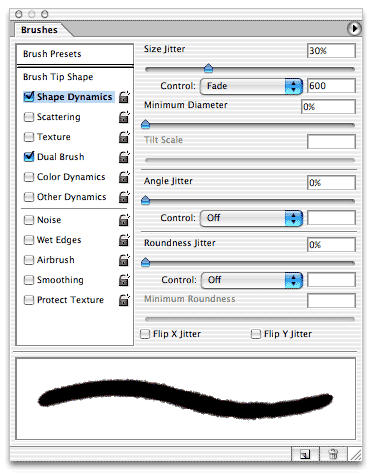
8. At the bottom of the Paths palette, click the Stroke Path button to apply your brush to the path. You may need to Undo and adjust the number of steps several times until you get the look you want.
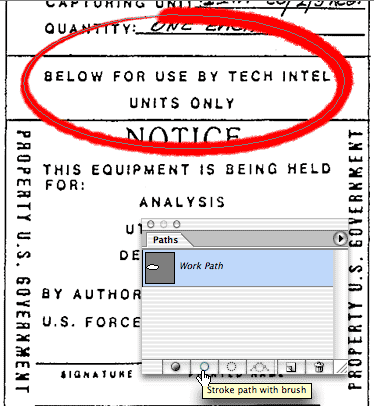
9.
[Optional] With the path still active, you can stroke again, using
another brush, another color, even a different tool, such as the Burn
or Dodge tool, to further customize your look. The Paths palette menu
command Stroke Path opens a dialog box in which you can select a tool
with which to stroke. Remember, too, that if you are working on a
separate layer, you can change the blending mode and adjust the opacity
of the layer, too.
10. Click in an empty area of the Paths palette to deselect your path.
 Pete
Bauer is the Help Desk Director for NAPP, as well
as a Contributing Writer for Photoshop User and Mac Design
magazines. His books include "Special Edition Using
Adobe Photoshop 7" (with Jeff Foster), "Special
Edition Using Adobe Illustrator 10," "Sams Teach
Yourself Adobe Illustrator 10 in 24 Hours" (with Mordy
Golding), and "Special Edition Using Adobe Illustrator
9." Pete writes documentation for a variety of computer
graphics related products, as well as testing software
for a number of companies. As a computer graphics efficiency
consultant, Pete specializes in customized training programs.
He is based in Columbus, Ohio, and can be contacted via
Pete
Bauer is the Help Desk Director for NAPP, as well
as a Contributing Writer for Photoshop User and Mac Design
magazines. His books include "Special Edition Using
Adobe Photoshop 7" (with Jeff Foster), "Special
Edition Using Adobe Illustrator 10," "Sams Teach
Yourself Adobe Illustrator 10 in 24 Hours" (with Mordy
Golding), and "Special Edition Using Adobe Illustrator
9." Pete writes documentation for a variety of computer
graphics related products, as well as testing software
for a number of companies. As a computer graphics efficiency
consultant, Pete specializes in customized training programs.
He is based in Columbus, Ohio, and can be contacted via
