


Photoshop makes it easy to create a single image that contains different versions of the same original. In this example, we'll borrow a page from Andy Warhol and create four different monotone versions of a photograph, combined into a single image.
Start with an
image, just about any image. We'll use PhotoSpin's image #0370029 by
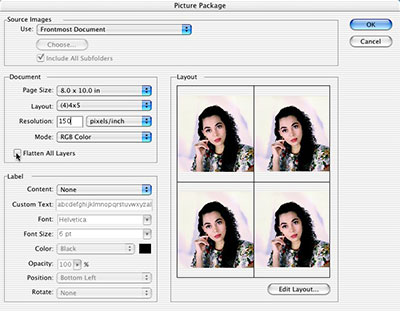
Robert Meyers. Using Photoshop's File> Automate> Picture Package
feature, we can add four copies of the image to a single page. Uncheck
the "Flatten All layers" option.
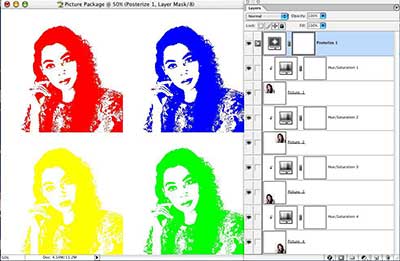
Add a Posterize adjustment layer to the top of the Layer palette, which
applies the Posterize adjustment to all layers below. (In this example,
Posterize is set to Levels: 4.) Add individual Hue/Saturation
adjustment layers for each of the four image layers. To restrict each
Hue Saturation adjustment layer to the image layer directly below, you
simply Option-click (Mac) or Alt-click (Windows) on the line between
the adjustment layer and the image layer in the Layers palette. (This
"clips" the adjustment layer to the layer below.)
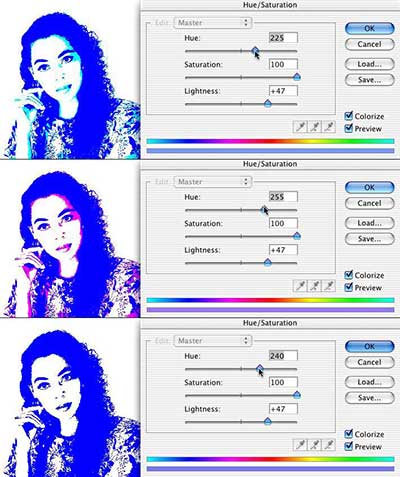
For each of the Hue/Saturation adjustment layers, click on the Colorize
box and select the color you want to use. In this image, observe that
the top sample shows blue and cyan, the middle example has blue and
magenta, and the bottom image contains only blue.
If
you choose to use a single color for each panel of the image, think
"60." You'll increase the Lightness and Saturation sliders, then adjust
the Hue slider to multiples of 60:
Red: 0 (and 360)
Yellow: 60
Green: 120
Cyan: 180
Blue: 240
Magenta: 300
If you'd like, you can apply this same technique to an image with a
single image layer. Use four adjustment layers, each with a layer mask
restricting that adjustment to one quadrant of the image. (This can
substantially reduce file size.)
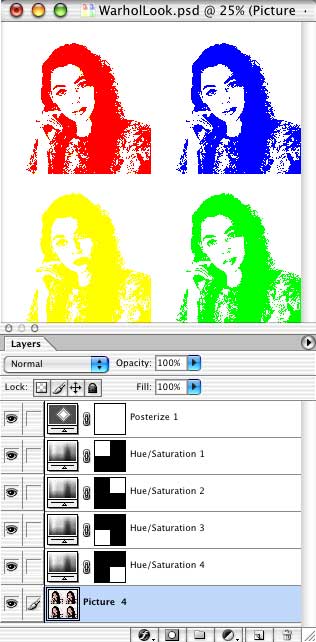
Best of all, it's easy to make simple changes to adjustment layers and
create different version of this artwork. Re-open the adjustment layers
and change the settings, keeping the same basic artwork, altering only
the arrangement of color or the colors used. Give each a new name and
consider it a new piece of artwork.
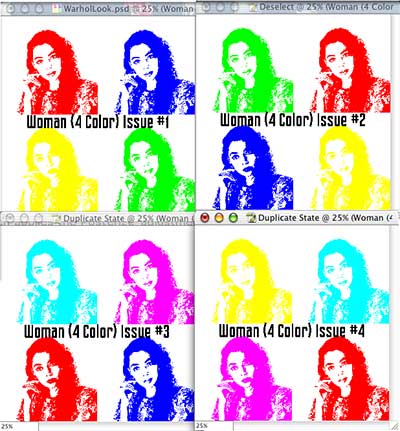
And, when you think about it, this may be the most Warhol-esque aspect of this entire project.
 Pete
Bauer is the Help Desk Director for NAPP, as well
as a Contributing Writer for Photoshop User and Mac Design
magazines. His books include "Special Edition Using
Adobe Photoshop 7" (with Jeff Foster), "Special
Edition Using Adobe Illustrator 10," "Sams Teach
Yourself Adobe Illustrator 10 in 24 Hours" (with Mordy
Golding), and "Special Edition Using Adobe Illustrator
9." Pete writes documentation for a variety of computer
graphics related products, as well as testing software
for a number of companies. As a computer graphics efficiency
consultant, Pete specializes in customized training programs.
He is based in Columbus, Ohio, and can be contacted via
Pete
Bauer is the Help Desk Director for NAPP, as well
as a Contributing Writer for Photoshop User and Mac Design
magazines. His books include "Special Edition Using
Adobe Photoshop 7" (with Jeff Foster), "Special
Edition Using Adobe Illustrator 10," "Sams Teach
Yourself Adobe Illustrator 10 in 24 Hours" (with Mordy
Golding), and "Special Edition Using Adobe Illustrator
9." Pete writes documentation for a variety of computer
graphics related products, as well as testing software
for a number of companies. As a computer graphics efficiency
consultant, Pete specializes in customized training programs.
He is based in Columbus, Ohio, and can be contacted via
