
Use fill layers and layer masks to create a muted antique photo without reducing contrast.
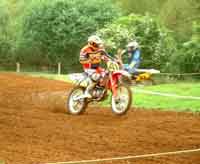 |
1. Open the image for editing. |
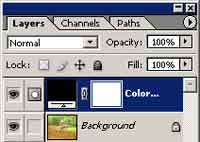 |
2. Create a new Solid Color fill layer (Layer> New Fill Layer> Solid Color) with black as the colour |
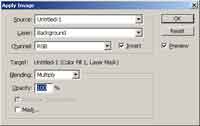 |
3. With the layer mask selected, use the Apply Image tool (Image> Apply Image) to apply the following properties:
Layer: Background
|
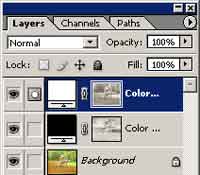 |
4. Duplicate the current layer (Ctrl+J), invert (Ctrl+I) the layer mask of the new layer and change the fill color to white. |
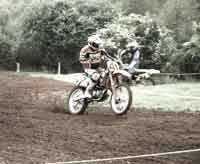 |
5. Rollover the image in this step to see the original image before this Photoshop technique was applied. |
