
Add a dirty overlay to an image.
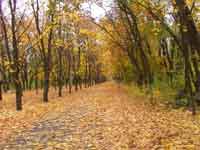 |
1. Open the image you want to edit. |
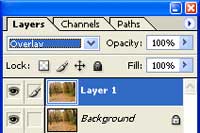 |
2. Duplicate the layer (Ctrl+J) and change the blending mode of the new layer to Overlay. |
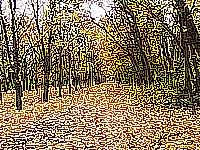 |
3. Apply a Sharpen More filter (Filter> Sharpen> Sharpen More) and repeat it (Ctrl+F) about 15 times. |
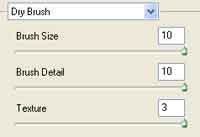 |
4. Use the Dry Brush filter (Filter> Brush Strokes> Dry Brush) to apply these settings:
Brush Size: 10
|
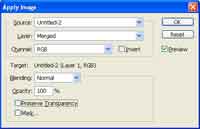 |
5. Make sure that you're still editing the top layer. Use the Apply Image tool (Image> Apply Image) and use these properties:
Layer: Merged
|
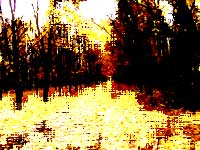 |
6. Here is the result that I got. |
