


An abstract effect that adds bordered squares over the highlights of an image.
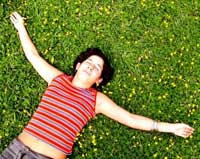 |
1. Open the image for editing. |
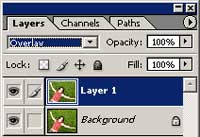 |
2. Duplicate the current layer (Ctrl+J) and change the blending mode of the new layer to Overlay. |
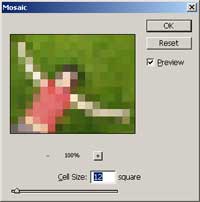 |
3. On the new layer, add a Mosaic filter (FIlter> Pixelate> Mosaic). For this step, I've used a celll size of 12 square. Use a larger value for larger images. |
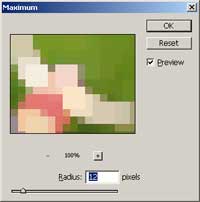 |
4. Add a Maximum filter (Filter> Other> Maximum) with the same value as the one you've used in the previous step. |
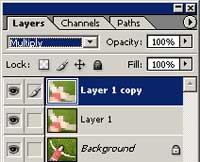 |
5. Duplicate the current layer (Ctrl+J) and change the blending mode of the new layer to Multiply. |
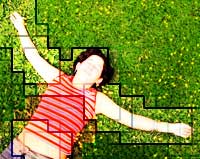 |
6. Apply a Find Edges filter (Filter> Stylize> Find Edges). |
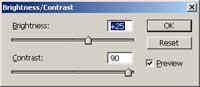 |
7. Use the Brightness/Contrast tool (Image> Adjustment> Brightness/Contrast) to increase the contrast to 90. Increase the brightness to reduce the number of outlines on the image. |
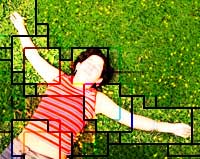 |
8. Rollover the image in this step to see the original image before this technique was applied. |
