


| Step 1 Make a new document of 500x300 pixels. Make a new layer. Select the Eliptical Marquee Tool and make a fixed size of 150x150 and centre it. Make the background colour #696969 and fill the smooth metal layer in #D5D5D5, as shown below. |
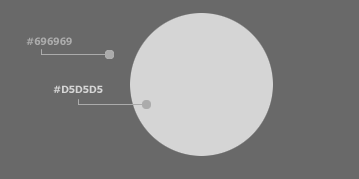 |
| Step 2 Now start by right mouse clicking on the orb layer, in your layers palette and click Blending options. Go to Stroke and enter in the settings as shown below: |
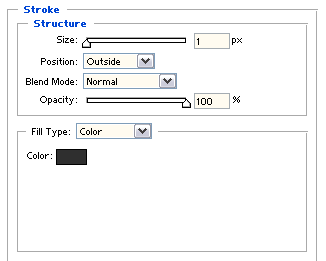
|
| Step 3 Now select the Bevel and Emboss Properties and enter in the settings as shown below: |
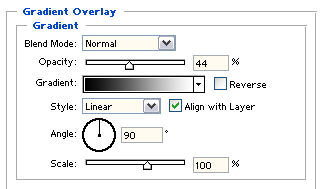 |
| Step 4 Now select the Inner Shadow Properties and enter in the settings as shown below: |
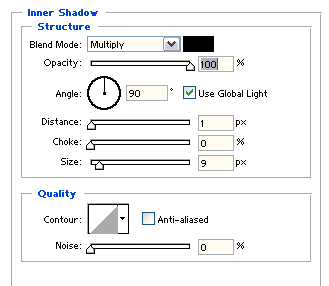 |
| As you have made all the settings, why not save it, so you don't have to do it again? Go to Blending Options section and click on New Style.. and make a name for the style effect. I'd call it smooth metal. |
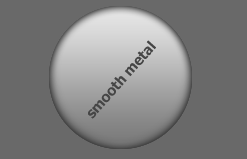
| Final Result Well, that was it, I added text to show you how it looks with text. Hope you enjoyed the tutorial. |
 |
