


| Introduction Make great trendy buttons to go with your website. |
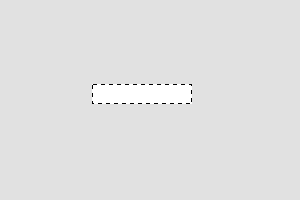
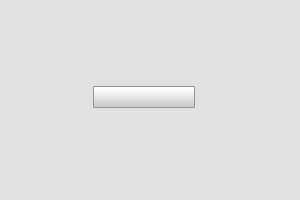
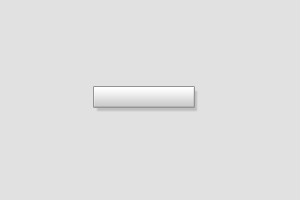
| Step 1 Start off with a new document 500x300 and make a new layer and make the background a light grey colour, so we know what we are doing. Grab your Rectangle Marquee Tool and make a fixed size of 85x20. Fill that in with the colour white. You should have something that roughly looks like ours.. It is? Great, lets move on.. |
 |
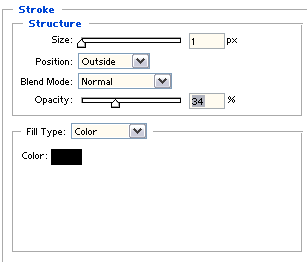
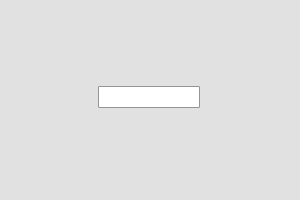
| Step 2 Now on your layers palette, find a little symbol that looks like this  then go straight to stroke. This will now add a stroke effect to the button,
making it look a little more dynamic. You should now enter in these settings:
then go straight to stroke. This will now add a stroke effect to the button,
making it look a little more dynamic. You should now enter in these settings:
|
 |
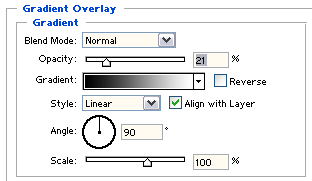
| Step 3 Now go straight to Gradient Overlay and enter in these settings:
|
 |
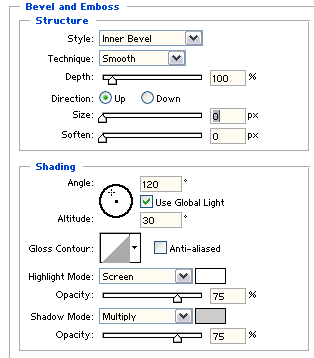
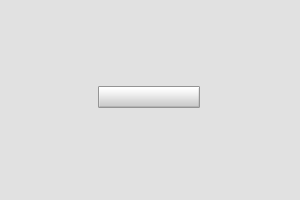
| Step 4 Now for the Bevel and Emboss, go straight to it and enter in these settings:
|
 |
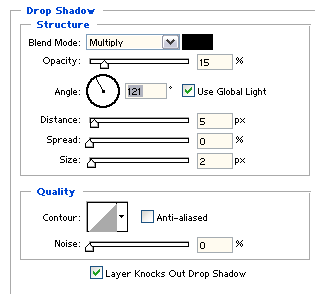
| Step 5 Now to add a little shadow to it. Go to Drop Shadow and enter in these settings:
|
 |
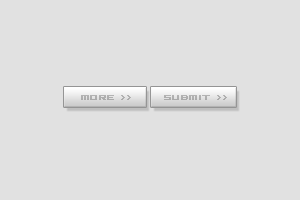
| Step 6 As you can see your finished, but the thing is it needs something else, something more trendy. I know adding text to it. Select your Text tool, and select a font. Once you've done that enter in anything you want to add to it. I chose to add "Submit >>" which makes it look a little trendy. |
 |
| Final Result Now to add a little shadow to it. Go to Drop Shadow and enter in these settings:
|
 |
