Her
Home
Photoshop Tutorials
Web Layout
Nice Trendy Navigation Bar
Nice Trendy Navigation Bar
Added:Mar 17, 2005 Rating:
Less than 3 votes yet
Level: Beginner Software:
Photoshop
Introduction
Make those nice trendy Navigations for your site. Using easy to
tools and easy steps with our tutorial! |
Step 1
First of all you will need to start of with a new blank document,
about 500 by 500 pixels, and fill the background with #D5D5D5. Now select
the Rectangle Marquee tool and make a selection as show below. |
Step 2
Fill the Rectangle in this colour #FFFFFF. Then go straight to
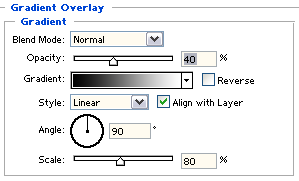
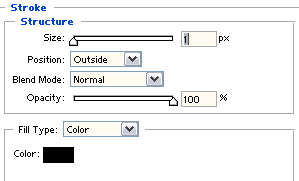
[Layer > Layer Style > Blending Options > Stroke]. You will now
add a stroke to it, simply look at the settings on the left image. Now go
to Gardient Overlay and look at the settings on the right image. Once you've
done that, click done (ok). |
Step 3
Now you should have a nice looking bar, now we are going to add
the text to it.
Name them whatever you desire, and make it look a little like ours below: |
Step 4
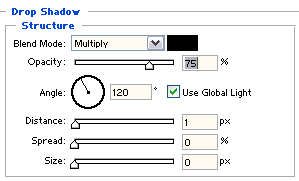
Thats really it, what you can do now is make the text have a shadow
to it, simply going to [Layer > Layer Style > Blending Options >
Drop Shadow], and look at the settings on the image below: |