


Add a reflection to the water in your photograph.
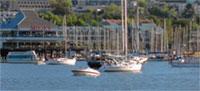 |
1. Open the image for editing. |
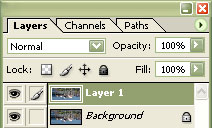 |
2. Duplicate the current layer (Ctrl+J). |
|
3. Flip the new layer horizontal (Image> Transform> Flip Horizontal) and scale (Image> Transform> Scale) the height to 50%. |
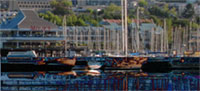 |
4. Change the current layer's blending mode to "Difference" and align the current layer to the backgorund. |
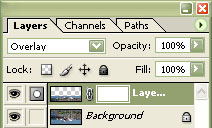 |
5. Set the current layer's blending mode to "Overlay" and add a layer mask (Layer> Add Layer Mask> Reveal All). |
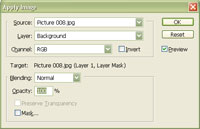 |
6. With the layer mask selected, use the "Apply Image" tool to apply the following properties:
Source: filename
Click OK. |
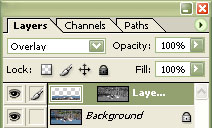 |
7. Select the current layer to deselect the mask to and unlink the layer with its mask. |
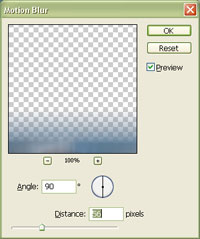 |
8. Apply a "Motion Blur" (Filter> Blur> Motion Blur) and set the "Distance" to the length of the reflection. |
|
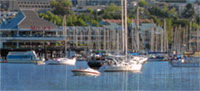
9. Adjust the opacity to increase or decrease the effect. Rollover the image on the left of this step to see the original image before this technique was applied. |
