


Use surface light to emit light into a photograph by painting patterns in a layer mask.
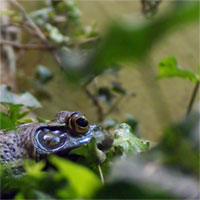 |
1. Open the image for editing. |
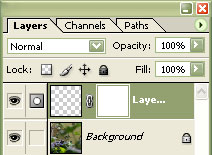 |
2. Create a new transparent layer (Ctrl+Shift+N) and add a layer mask (Layer> Add Layer Mask> Reveal All). |
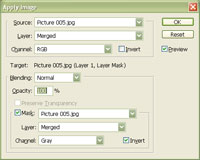 |
3. With the new layer's layer mask selected, use the "Apply Image" tool to apply the following properties:
Source: filename
Click OK. |
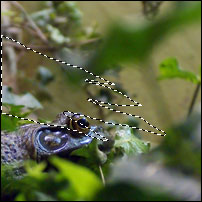 |
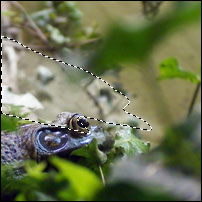
4. On the new layer, use the lasso tool (L) to select the area where the light will be. |
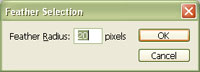 |
5. Feather the selection (Ctrl+Alt+D) with a radius that will blur the edges without losing most of the selection's shape. Click OK. |
 |
6. Fill in the selection with the colour of your light. For this step, I've used the colour white as my light. Deselect the selection (Ctrl+D). |
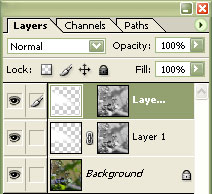 |
7. Duplicate the current layer (Ctrl+J) and unlink the new layer with its layer mask. |
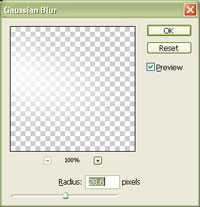 |
8. Apply a "Gaussian Blur" (Filter> Blur> Gaussian Blur) and select a radius that will blur the layer while keeping most of its opacity. |
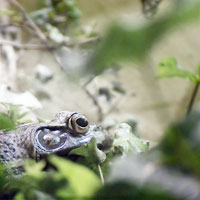
|
9. Try adding several more light of different shapes such as a window. Rollover the image on the left of this step to see the original image before this technique was applied. |
