

Add random realistic reflections without drawing.
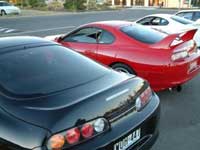 |
1. Open the image for editing. |
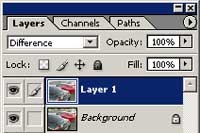 |
2. Duplicate the current layer and change the blending mode to Difference. |
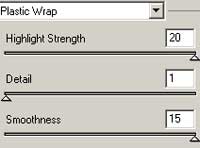 |
3. Add a Plastic Wrap filter (Filter> Sketch> Plastic Wrap) with the following properties:
Highlight Strength: 20
|
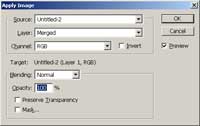 |
4. Use the Apply Image tool (Image> Apply Image) to apply the following properties:
Layer: Merged
|
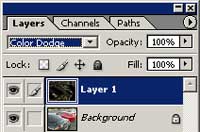 |
5. Change the blending mode of the current layer to Color Dodge. |
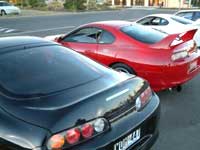 |
6. Use the Eraser tool (E) to erase all the excessive reflections. Rollover the image in this step to see the original image before this Photoshop technique was applied. |
