


Use a combination of filters to create a realistic rock texture.
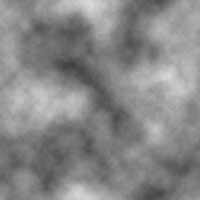 |
1. Create a new document and add a Clouds filter (Filter> Render> Clouds). |
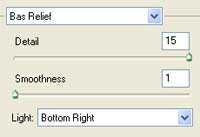 |
2. Apply these settings using the Bas Relief filter (Filter> Sketch> Bas Relief):
Detail: 15
|
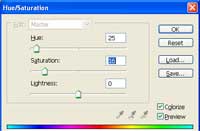 |
3. Use the Hue/Saturation tool (Ctrl+J) to colorize the rock. These are the settings I used:
Colorize: Checked
|
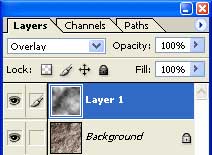 |
4. Create a new layer and add a Clouds filter (Filter> Render> Clouds). Change the blending mode of the layer to Overlay. |
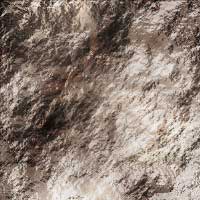 |
5. Here is the result that I got. |
