


Create realistic gruesome blood dripping on a metal wall.
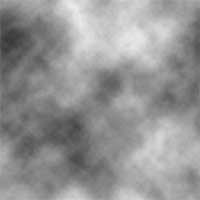 |
1. Create a new 500x500 oixels document and add a Clouds filter (Filter> Render> Clouds). |
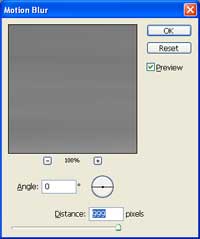 |
2. Add a Motion Blur filter (Filter> Blur> Motion Blur) with these settings:
Angle: 0º
|
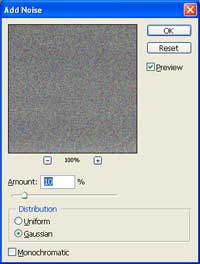 |
3. Use the Add Noise filter (Filter> Noise> Add Noise) to apply these settings:
Amount: 10%
|
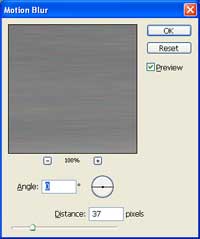 |
4. Add another Motion Blur filter (Filter> Blur> Motion Blur) but with these settings:
Angle: 0º
|
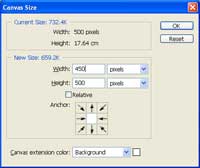 |
5. Crop the image to using the Canvas Size tool (Image> Canvas Size) with these settings:
Width: 450 pixels
|
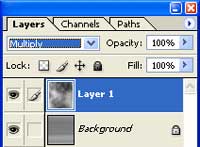 |
6. Create a new layer, add a Clouds filter (Filter> Render> Clouds), then change the blending mode to Multiply. |
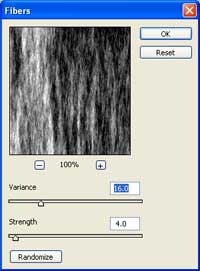 |
7. Add a Fibers filter (Filter> Render> FIbers). |
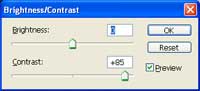 |
8. Increase the contrast by +85 using the Brightness/Contrast tool (Image> Adjustments> Brightness/Contrast). |
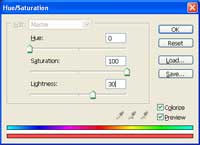 |
9. Colorize the layer using the Hue/Saturation tool (Ctrl+U) with these settings:
Hue: 0
|
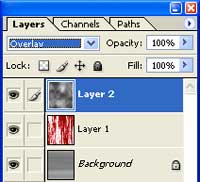 |
10. Create a new layer, add a Clouds filter (Filter> Render> Clouds) and change the blending mode to Overlay. |
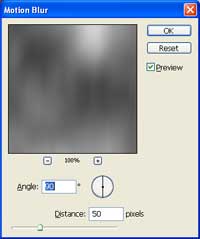 |
11. Add a Motion Blur filter (Filter> Blur> Motion Blur) with these settings:
Angle: 90 º
|
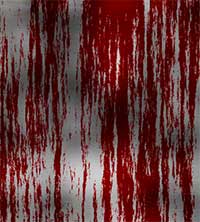 |
12. Here is the result that I got. |
