

A pixel art brick texture created using a combination of filters to eliminate the need of drawing.
 |
1. Create a new document with a white background. |
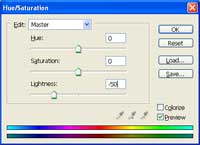 |
2. Use the Hue/Saturation tool (Ctrl+U) to decrease the lightness by -50. |
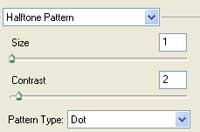 |
3. Apply a Halftone Pattern filter (Filter> Sketch> Halftone Pattern with these settings:
Size: 1
|
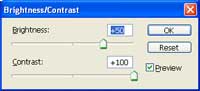 |
4. Use the Brightness/Contrast tool (Image> Adjustments> Brightness/Contrast) to apply the following properites:
Brightness: +50
|
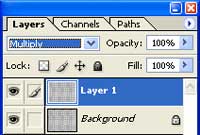 |
5. Duplicate the layer (Ctrl+J) and change the blending mode to Multiply. |
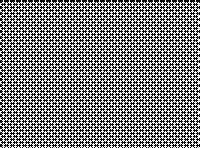 |
6. Nudge the top layer by two pixels to the left. |
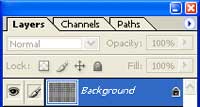 |
7. Merge the layer (Ctrl+E). |
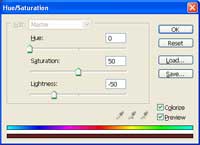 |
8. Use the Hue/Saturation tool (Ctrl+U) to colorize the image. These are the settings I used:
Colorize: Checked
|
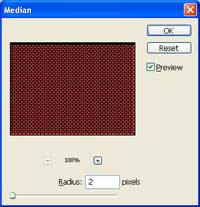 |
9. Apply a Median filter (Filter> Noise> Median) with a radius of 2 pixels. |
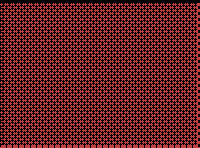 |
10. Here is the result that I got. |
