Create stunning 3D text quickly and easily.
 |
1. Create a new document and use the "Text" tool (T) to insert some text. |
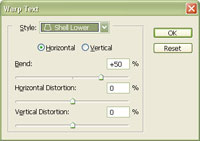 |
2. With the "Text" tool (T) still selected, click on the "Create warped text" button in the options bar to apply the following properties:
Style: Shell Lower
Click OK. |
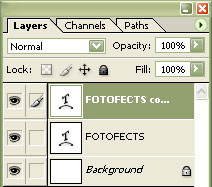 |
3. Duplicate the current layer (Ctrl+J). |
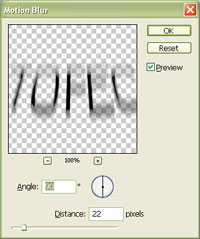 |
4. Using the "Motion Blur" filter (Filter> Blur> Motion Blur), set the "Angle" to "90º" and the "Distance" to what you want the height of the text to be. |
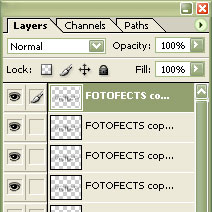 |
5. Press Ctrl+J many times to duplicate the layer so that the text appears as a solid black. |
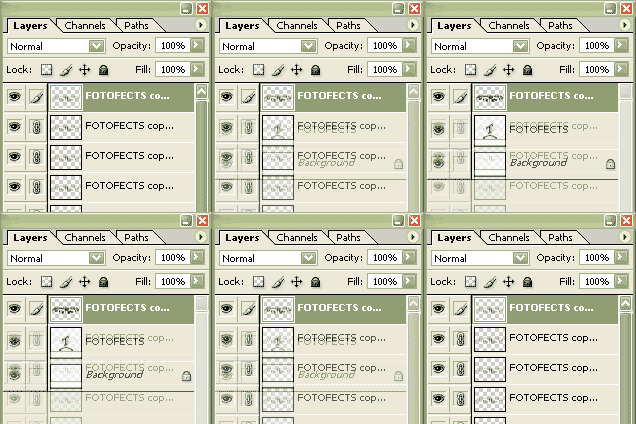 |
6. Link all the layers except for the bottom two layers and merge the linked layers (Ctrl+E). |
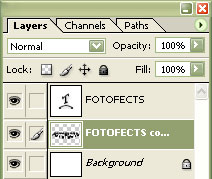 |
7. Move the merged layer below the text layer. |
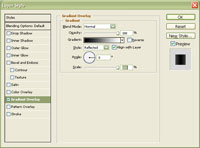 |
8. With the merged layer selected, apply a "Gradient Overlay" layer style (Layer> Layer Style> Gradient Overlay) with the following properties:
Blend Mode: Normal
Click OK. |
 |
9. Move the top text layer so that it appears to be on the top of the stretched text. |
