
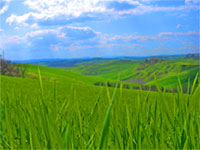
Turn ordinary grass and sky photographs into vivid landscapes.
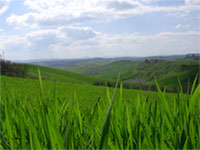 |
1. Open the image for editing. |
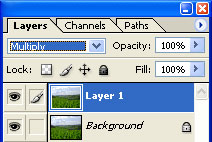 |
2. Duplicate the current layer (Ctrl+J) and change its blending mode to "Multiply". |
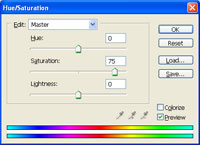 |
3. With the new layer selected, use the "Hue/Saturation" tool (Ctrl+U) to increase the "Saturation". Click OK. |
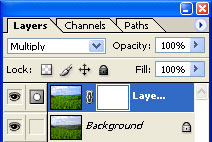 |
4. Add a layer mask (Layer> Add Layer Mask> Reveal All) to the current layer. |
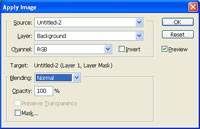 |
5. With the layer mask selected, use the "Apply Image" tool (Image> Apply Image) to apply the following properties:
Source: filename
Click OK. |
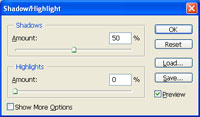 |
6. Select the layer "Background" and use the "Shadow/Highlight" tool (Image> Adjustment> Shadow/Highlight) to increase the "Shadows". Click OK. |
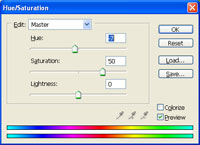 |
7. Create a new "Hue/Saturation" adjustment layer (Layer> New Adjustment Layer> Hue/Saturation) and increase the saturation. Click OK. |
|
8. Rollover the image on the left of this step to see the original image before this technique was applied. |
