

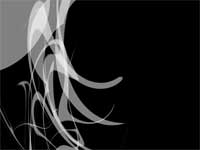
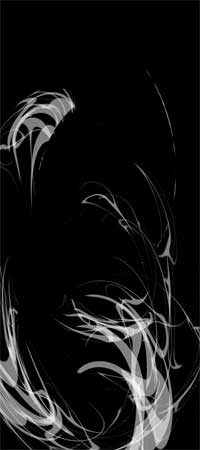
Random curved shapes forming a tsunami.
 |
1. Create a new 640x480 pixels document with a black background then create a new layer. |
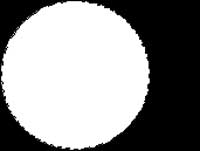 |
2. Use the Circular Marquee tool (M) to create a selection of s circle. Fill the selection with white and deselect (Ctrl+D). |
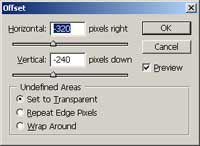 |
3. Use the Offset filter (Filter> Other> Offset) to apply these settings:
Horizontal: -320 pixels right
|
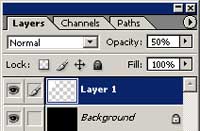 |
4. Change the opacity of the current layer to 50%. |
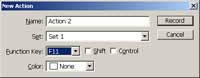 |
5. In the Actions pallet (Alt+F9), create a new action and choose a Function Key. |
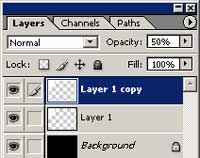 |
6. With the action recording, duplicate the current layer (Ctrl+J). |
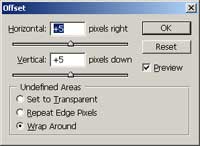 |
7. Use the Offset filter (Filter> Other> Offset) to apply these settings:
Horizontal: +5 pixels right
|
 |
8. Transform the layer (Ctrl+J) with these settings:
W: 160%
|
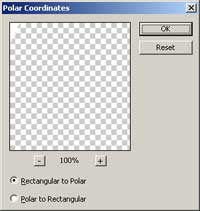 |
9. Distort the image using the Polar Coordinates filter (Filter> Distort> Polar Coordinates) using the Rectangular to Polar method. |
 |
10. Stop the action and press the function key you've defined in step 5 about 15 times. |
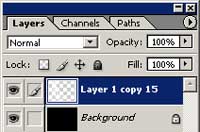 |
11. Delete the 2nd layer from the bottom, link all of the layers except for Background then merge linked (Ctrl+E). |
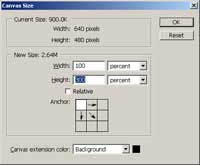 |
12. Use the Canvas Size tool (Image> Canvas Size) to apply these settings:
Width: 100 percent
|
 |
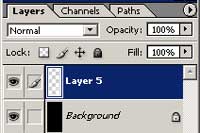
13. On the top layer, press the function key you've defined in step 5 about 5 times. |
 |
14. Link all of the layers except for Background then merge linked (Ctrl+E). |
 |
15. Transform (Ctrl+T) the layer with these settings:
Width: 40%
|
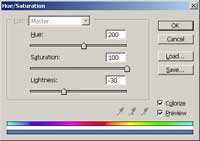 |
16. Colorize the image using the Hue/Saturation tool (Ctrl+U). These are the settings I used:
Colorize: Checked
|
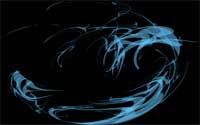 |
17. Crop the image. |
