

Butterflies formed by a random pattern of dots.
1 |
 |
Create a new 1024x768 pixels document with a black background. |
2 |
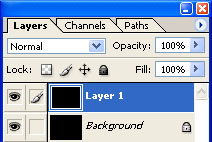 |
Duplicate the current layer (Ctrl+J). |
3 |
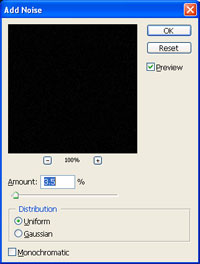 |
With the new layer selected, use the "Add Noise" filter (Filter> Noise> Add Noise) to apply the following properties: Amount: 3.5% Click OK. |
4 |
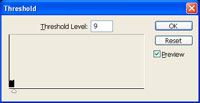 |
Use the "Threshold" tool (Image> Adjustmets> Threshold) and drag the input slider left so that it hits the very first pixel of the histogram. |
5 |
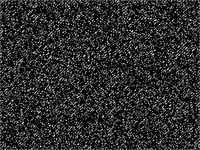 |
Use the "Magic Wand" tool (M) to select the black areas of the layer, clear (Delete) and deselect (Ctrl+D). |
6 |
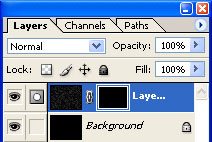 |
Add a layer mask with a black background to the current layer (Layer> Add Layer Mask> Hide All). |
7 |
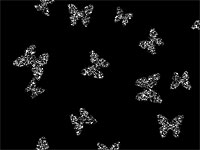 |
With the layer mask selected, use the "Brush" tool and select the "Butterfly" brush (Special Effects Brushes) and paint. |
8 |
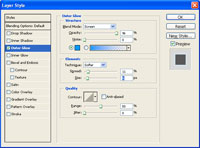 |
Apply an "Outer Glow" layer style (Layer> Layer Style> Outer Glow) to the current layer. |
9 |
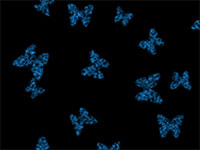 |
Use different layer styles and properties to get different effects. |
10 |
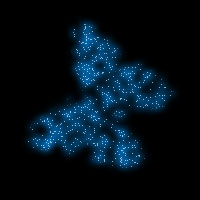 |
Here is a cropped area of a high resolution version. |
