

Rectangles that appears to be repeating behind another.
1 |
 |
Create a new 1280x1024 document. Create a new layer and use the "Rectangular Marquee" tool (M) to make a selection of a rectangle. Fill the selection with a colour and set the layer's opacity to 50%. |
2 |
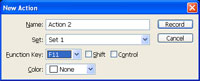 |
Create a new action in the "Actions" pallet (Window> Actions) and select a "Function" key for it. Click Record. |
3 |
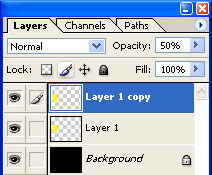 |
With the action being recorded, duplicate the current layer (Ctrl+J). |
4 |
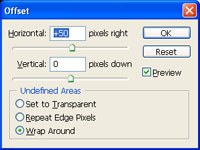 |
Use the "Offset" filter (Filter> Other> Offset) and apply the following properties: Horizontal: +50 Click OK. |
5 |
 |
Use the "Transform" tool (Ctrl+T) to apply the following properties: Width: 90% Press Return. |
6 |
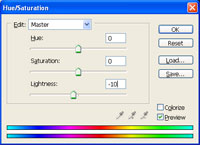 |
Use the "Hue/Saturation" tool (Ctrl+U) to set the "Lightness" to "-10". Click OK. |
7 |
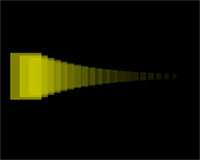 |
Stop recording the action. Press the function key you've defined in step 2 about 20 times, waiting for the action to be completed before you press the function key again. |
