


Rotating rectangular boxes with colours of the rainbow.
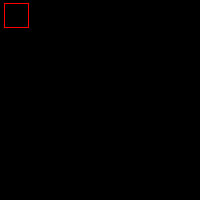 |
1. Create a new 1000x1000 pixels document with a black background. Use the "Marquee" tool (M) to draw a square similar to the size and position of the square drawn on the image in this step. Fill the selection with red and contract the selection (Select> Modify> Contract) by 5 pixels. |
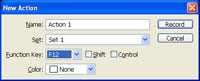 |
2. IIn the "Actions" pallet (Window> Actions), create a new action in a new set and specify a "Function Key" in the "New Action" dialog. |
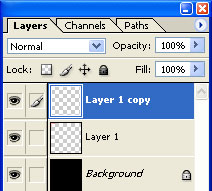 |
3. With the new action recording, duplicate the current layer (Ctrl+J). |
 |
4. Use the "Transform" tool (Ctrl+T) to apply the following properties:
Angle: 10º
|
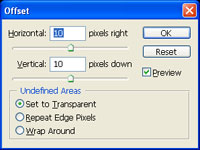 |
5. Use the "Offset" filter (Filter> Other> Offset) and apply the following properties:
Horizontal: 10
Click OK. |
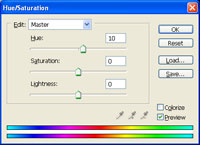 |
6. Use the "Hue/Saturation" tool (Ctrl+U) and set the "Hue" to "10". Click OK. |
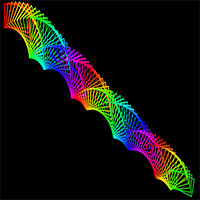 |
7. Stop recording the action. Press the function key you've specified in step 2 repeatly until your image looks like the image in this step. |
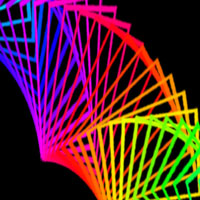 |
8. Here is a cropped area of a high resolution version. |
