


Create a feather with translucent fur.
 |
1. Create a new square document with a black background. Set the size to 1/3 of the size you want the final result to be. |
 |
2. Use the "Pen" tool (P) to draw a shape similar to the one drawn in the image in this step. |
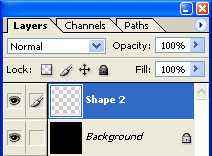 |
3. Rasterize the top layer (Layer> Rasterize> Layer). |
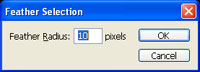 |
4. Make a selection of the top layer (Ctrl+Click on the layer) and apply a "Feather". Select a value that will slightly contract the selection. Click OK. |
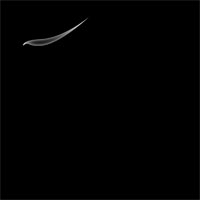 |
5. Clear the selected area (Delete) and deselect (Ctrl+D). |
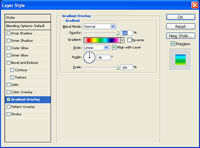 |
6. On the current layer, add a "Gradient Overlay" layer style (Layer> Layer Style> Gradient Overlay) and apply the following propertiess:
Blend Mode: Normal
Click OK. |
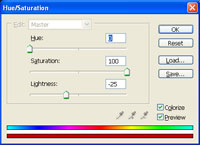 |
7. Use the "Hue/Saturation" (Ctrl+U) to apply the following properties:
Colorize: Checkmarked
Click OK. |
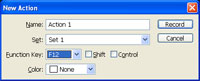 |
8. Create a new action inside a new set in the "Actions" pallet (Window> Actions). Set the "Function Key" of the new action to "F12". |
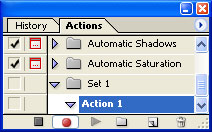 |
9. Start recording of the action is not already being recorded. |
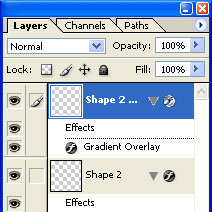 |
10. Duplicate the top layer (Ctrl+J). |
 |
11. Use the "Transform" tool (Ctrl+T) to apply the following properties:
Height: 110%
Click OK. |
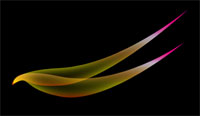 |
12. Use the "Offset" filter (Filter> Other> Offset) and select a value that will offset the new layer so that it's left tip matches the left tip of the bottom layer. |
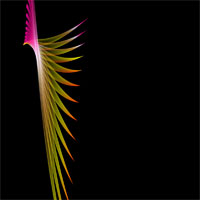 |
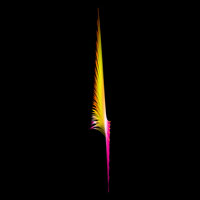
13. Stop the action in the "Actions" pallet and apply the action many times until you get an image that looks like the image in this step. |
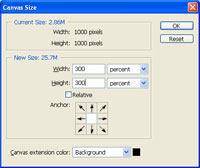 |
14. Use the "Canvas Size" tool (Image> Canvas Size) to apply the following properties:
Width: 300 percent
Click OK. |
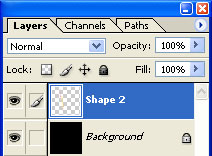 |
15. Link all the layers and merge linked (Ctrl+E). |
 |
16. Rotate the image by 180º (Image> Transform> Rotate 180º). |
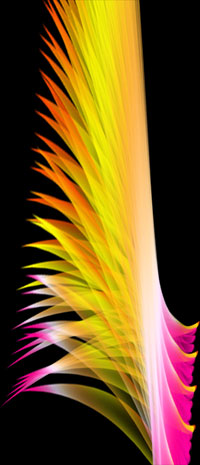 |
17. Here is a cropped area of a high resolution version. |
