


Add a simple and easy border to your photographs.
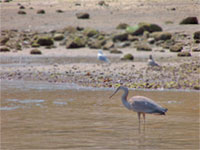 |
1. Open the image for editing. |
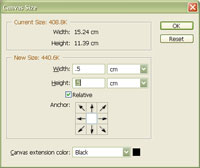 |
2. Use the "Canvas Size" tool (Image> Canvas Size) to apply the following properties:
Relative: Checkmarked
Click OK. |
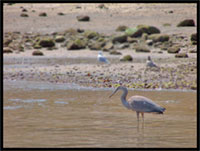 |
3. Your image now has a border. Read on if you would like to add a space for caption. |
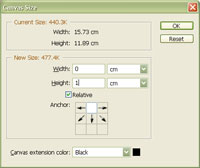 |
4. Use the "Canvas Size" tool (Image> Canvas Size) to apply the following properties:
Relative: Checkmarked
Click OK. |
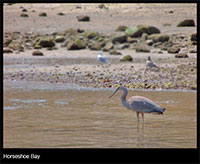 |
5. You now have an area to place a caption. Rollover the image in this step to see the original image before this technique was applied. |
