1) Make a new document, I used 300x125.
2) Paint your background whatever color you like. I used a dark grey.
3) Select your font tool, pick your font you wish to use.

4) Right click the font layer and duplicate it.
5) Now go to Edit>Free Transform:

Using the top middle node and drag it down.
6) Now you got:

7) Now select the Move Tool and press the up key once, this nudges the text together:

8) Now go to Edit>Transform>Skew:

9) Now right click the angled font layer and go to Rasterize Layer.
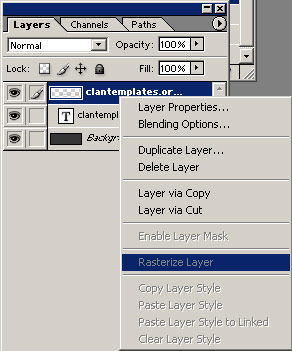
10) Now select the rectangular marque tool. At the top below the PS Navigation you will see Feather...

Turn it to 15 or lower or higher if you want, totally up to you, I used 15px Feather.
11) Make your rectangular marque selection like below:
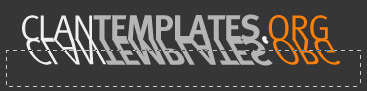
12) after making the selection it will turn into a selection with round ends:

13) Now you are ready to press the Delete button and watch the text fade away!