

1. Create a new document and cut/paste your girl into the canvas
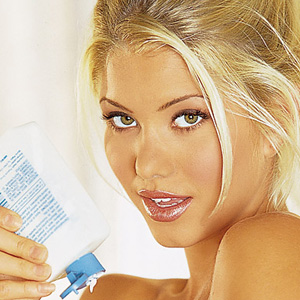
2. Now Press, ctrl+u
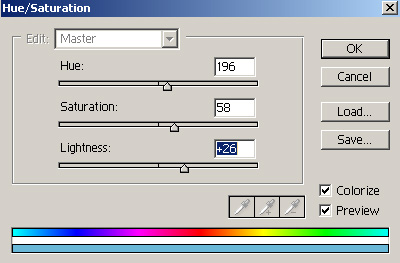
and should get something like this:

3. Duplicate the layer, and then do a filter>blur>gausian blur and use 1.5. Set the later mode to overlay.
4. Click on your newly created layer, and press ctrl+u:
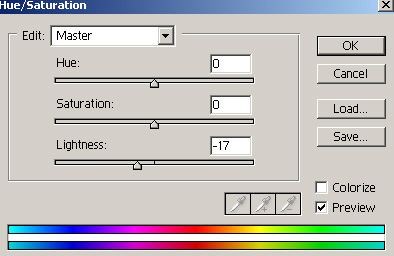
then press ctrl+l
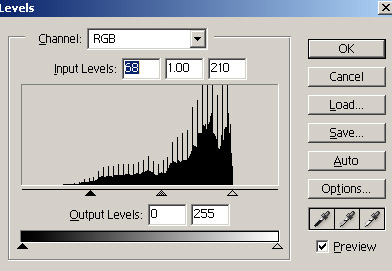
5.and now with your top layer still being in overlay mode:

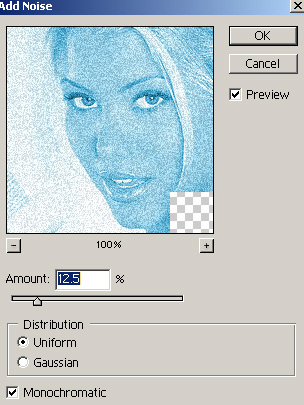
6. Click on the bottom original layer, and duplicate it. then add a filter>noise> add noise:
7. Then add a filter>blur>gausian blur:
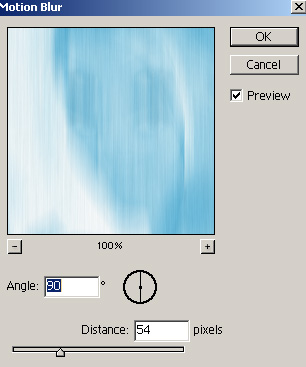
and then set the layer mode to overlay.
8. Now open a picture of water droplets ( such as this ) and copy/paste this image into a new layer somewhere inbetween your existing layers. Set the layer mode to overlay and then erase any place where the droplets obstruct the beautiful girl like I have done here:

9. Now click on the bottom layer, duplicate it and drag to the top of your layer. Then press ctrl+shift+u and then add a filter>distort>shear:
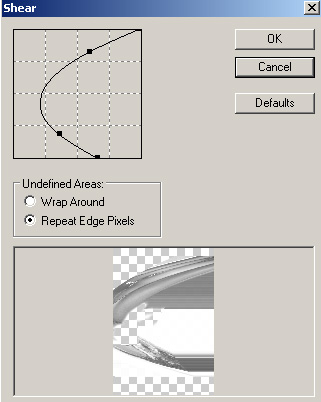
and get something like this:
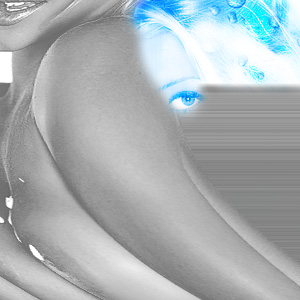
10. Duplicate this layer and then flip/rotate it (press ctrl+t) so that there is grey sections on all parts of your canvas:
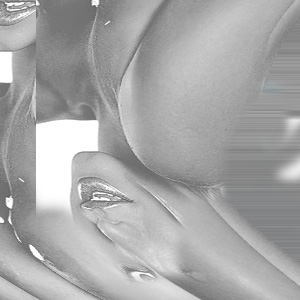
11. Now set both layer modes to softlight, or overlay, or multiply. play around with it until you get something like:

12. Now open a picture of waterdroping (like this one) and then cut/paste in your picture into a new layer, and set the layer mode to multiply.
13. You should press ctrl+u and change the droplets to blue and lighten them up some... so its faint and not overpowering. I placed my drops on the left side:

14. Now with some text and tweaking you can come up with something like this:

Enjoy
