While browsing the templates available at Web Design Library Shop, I came across several splendid examples of buttons. For the creation of this tutorial it is unnecessary to use the textures or brushes deployed in your version of Photoshop.
So, let's begin.
1. Create a document in Photoshop with the following settings:
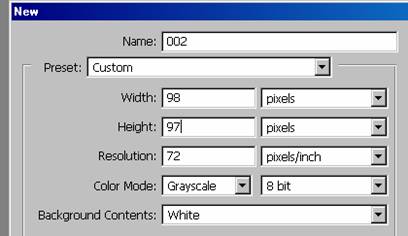
2. Fill in the background with black #000000.
3. Create a new layer and fill it with color #47514F.
4. Add noise . To do this, go to Filter>Noise>Add Noise... Use the following settings:
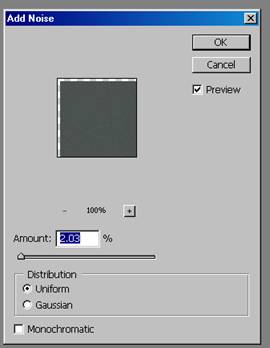
We should get this as our result:

5. Go to properties layer and make the following settings:
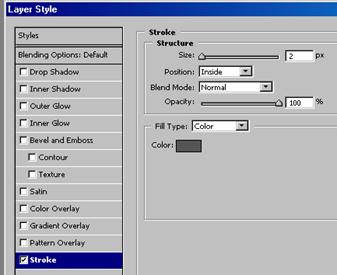
This should be the result we get:

6. The background is ready. Now let's move on to create the button itself.
(NOTE: the creation of such or another background is necessary, since otherwise your button on a light or white background will not be visible.)
Create a new layer and fill it with white, getting the following result:

7. Select layer. Next go Select>Modify>Contract . Select contract by 2 pixels .
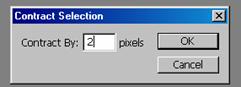
8. Create a new transparent layer. In the tools panel choose Gradient Tool .
The foundation color fill should be #B9BFBE.

Fill the area from the upper left corner of the selection
We will get such effect:

Deselect the area. Add the word home as it is in the template. Your button is ready.

See additional examples on the practical use of such elements.
