


1) Open up photoshop
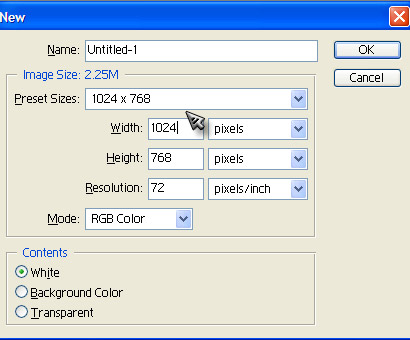
2) Go to File>New and make the image 1024x768 pixels
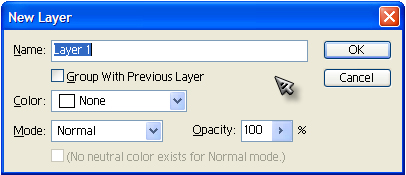
3) Go to Layer>New>Layer.
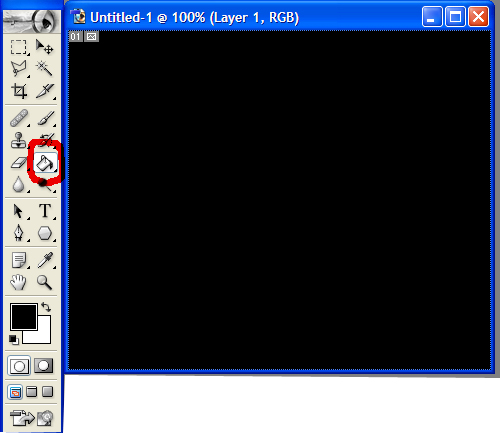
4) With the paint bucket tool Make a new Layer and fill it with black (000000).
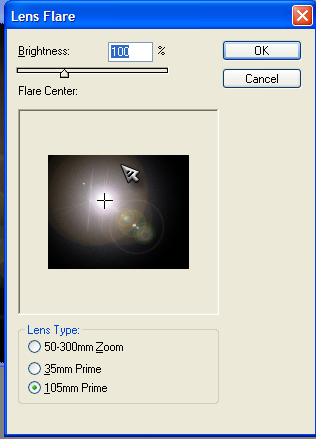
3) Go to Filter>Render>Lens Flare. Use these settings
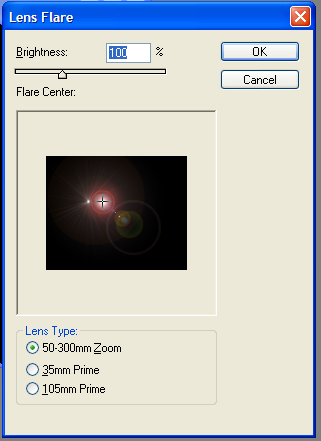
4) Go to Filter>Render>Lens Flare like above but use these settings.
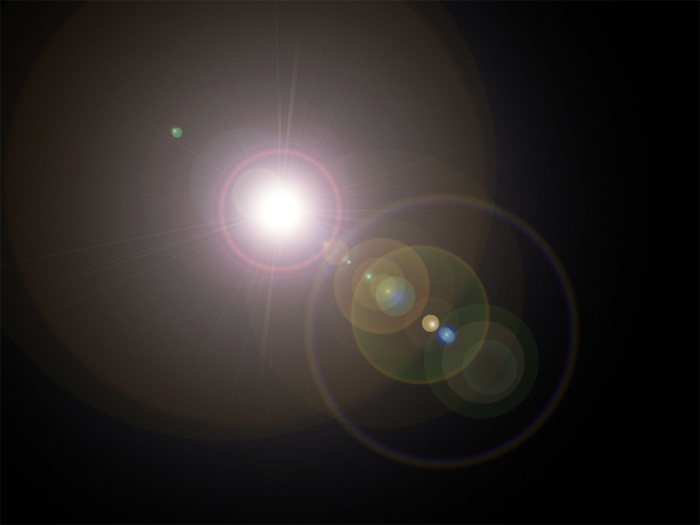
You should now have something that looks like this.
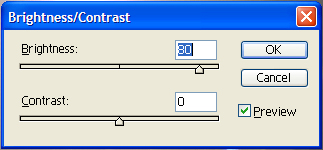
5) Go to Image>Adjustsments>Brightness/Contrast. Use the settings below.
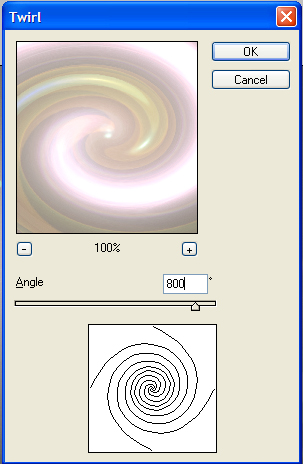
6) Go to Filter>Distort>Twirl. Use the settings below
7) Filter-Artistic-Plastic Wrap. Use these Settings.
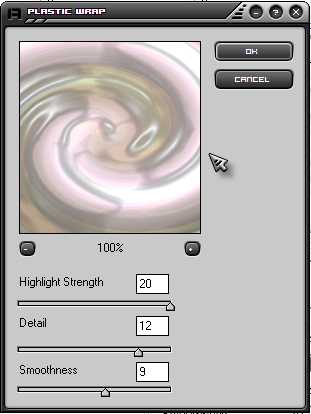
Now you should have something like this.
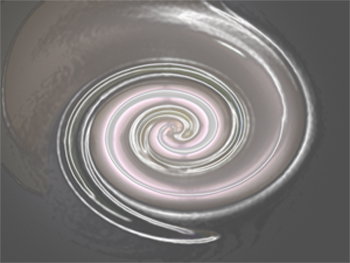
8) Go to Filter>Distort>Polar Coordinates. Use these settings.
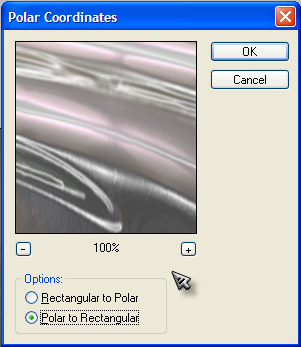
Now it should look like this.
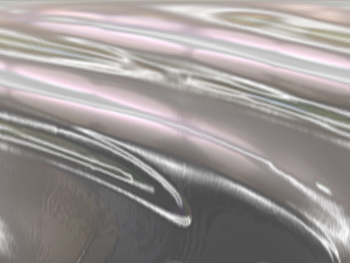
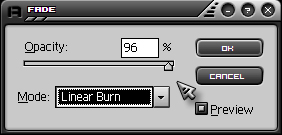
9) Go to Edit>Fade Polar Coordinates. Use these Settings.
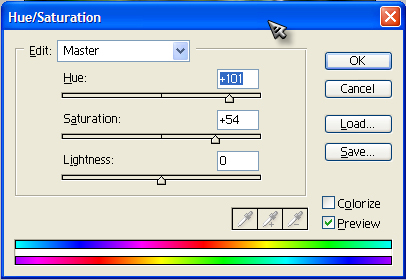
10) Go to Image>Adjustments>Hue/Saturation. Change the color to anything you like.
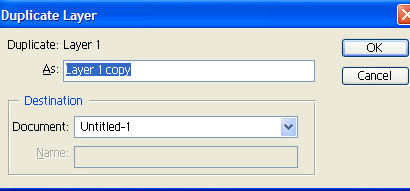
11) Go to Layer>Duplicate Layer
12) Edit>Transform>Flip Horizontal. You should now have something like this.
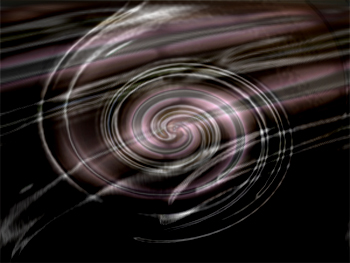
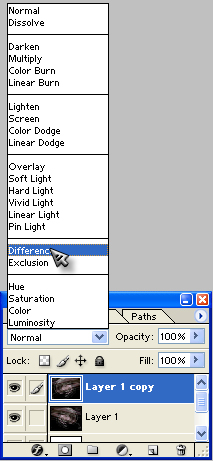
13) Set the blending mode to Difference. And your done.
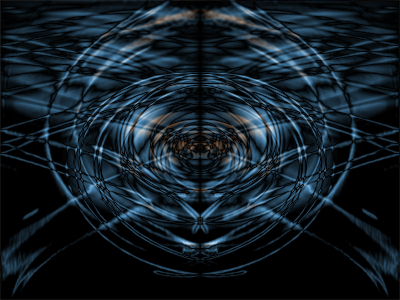
You should have got something like below but yours should be much larger. I just made it smaller so I could post it. Now you can use it as a wallpaper or anything you want.
Enjoy!
