1) Make a 400x400 document. You can edit>fill the background layer to any colour you want, I suggest a moderately dark gray
2) Make a Square Selection and Fill with Black
3) Now add a filter>render>lensflare using these settings:
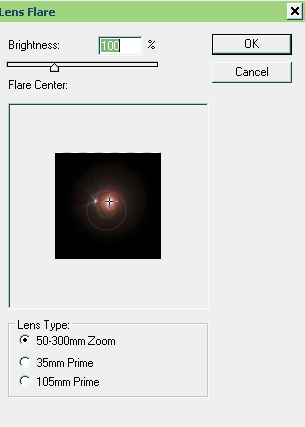
4) Now change the Layer Blending Mode to Screen, and
press ctrl+u to change to a colour.
5) Here is where the real fun happens. Duplicate that
layer, and on the new layer do a filter>distort>wave with
something like the settings here:
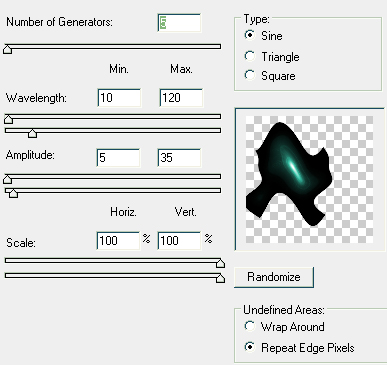
6) You should have some sort of cool design. What you'll
need to do is repeat step 5 many time, experimenting with settings, but
more importantly moving the duplicated layer. But doing this you'll let
the lens flare be hit by different waves.
7) Keep on repeating these steps until you finally come
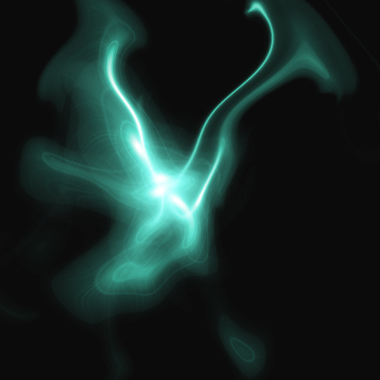
out with something like this:
Note: that ctrl+f repeats last filer applied
Note: that if you repeat a the same wave on the wave on the same flare many times you'll get extending flows.