1. Make a 400x400 document. You can edit>fill the background layer to Black
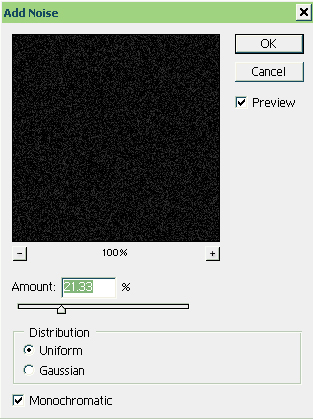
2. Then Add noise to your new layer using the following settings:
3. Now On Your newly Noised Layer, Add a Filter>Motion Blur at 90 degrees and 5 Strength
Then Add Some Colour By: image>adjust>hue&saturation I chose a classical matrix Green (Use Max Saturation)
4. Now we need to make it more like verticle Lines. so Image>Adjust>Levels and use settings similar to this:
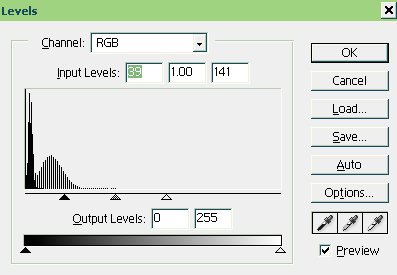
To get This:
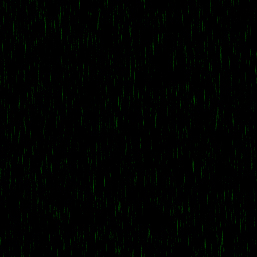
5. Now to Add the Matrix Code Effect. Download a pixel font Like 04B_21 here. Add A long stream by typing a letter, or number. So it looks like so:
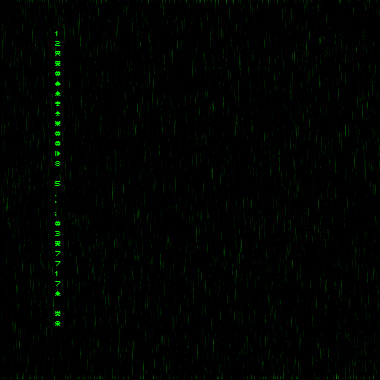
6. Now Duplicate the Text Layer, and Press ctrl+f to redo the Motion BLur Action. Then Merge the blur layer with the text layer, by pressing ctrl+e.
Now the hard part, duplicate this layer, and change opacity/size radomly. Create as many layer code as you wish, and be sure to blue some of the layers again! Experiment! I came up with this:

Enjoy! Tell your Friends!
