1) Make a new document, anysize doesn't matter. Press CNTRL+D to reset your pallete colors. Set your background to BLACK.
2) Go to Filter>Render>Lens Flare and apply multiple lens flares all over your canvas. Try mixing up the sizes aswell:
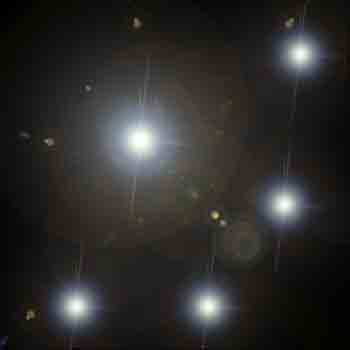
3) Right click the layer and duplicate it. Set the Blending Change to Screen. Apply these settings to the duplicated layer:
Filter>Sketch>Bas Relief:
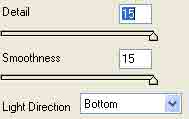
Filter>Artistic>Plastic Wrap:
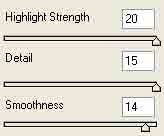
4) Click the bottom layer and apply Filter>Sketch>Chrome with these settings:
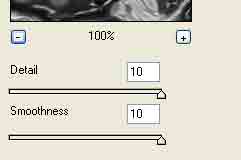
Your layers window should look like this:
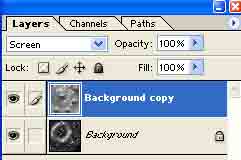
5) Apply these hue settings to the bottom layer:
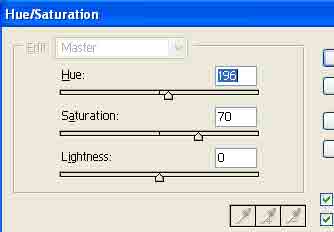
Then apply these settings to the duplicated layer:
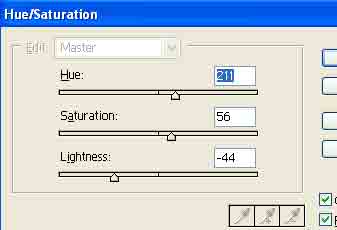
6) Press CNTRL+E to merge the 2 layers together. Make a new layer. Go to Filter>Render>Clouds.
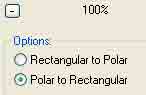
7) Go to Filter>Distort>Polar Coordinates and use these settings:
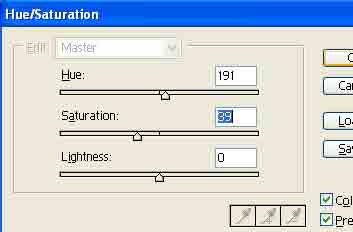
8) Press CNTRL+U to color the top layer:
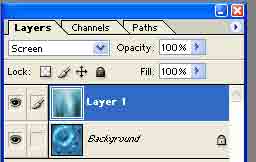
9) Change the blending change of the top laye to Screen:
10) Add Filter>Distort>Twirl to each of the layers. Use your own settings for each of these layers. Just dont go to nuts with the twirling :D.
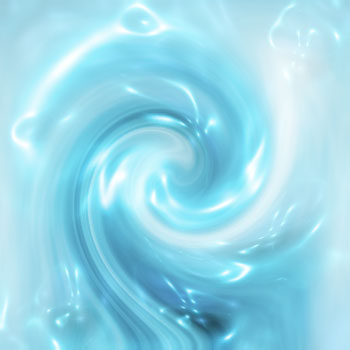
There ya go: