1. Make a new document, I used 700x200. Press CNTRL+D to reset your pallete colors. Start off with any color of background, I used white.
2. Starting with the Elipitical Marque Tool we want to make a lots of oval and round selections like below:
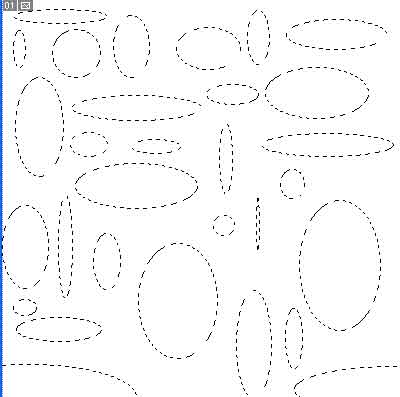
*Note if you hold SHIFT you can make numerous selections at once. Try it out :D
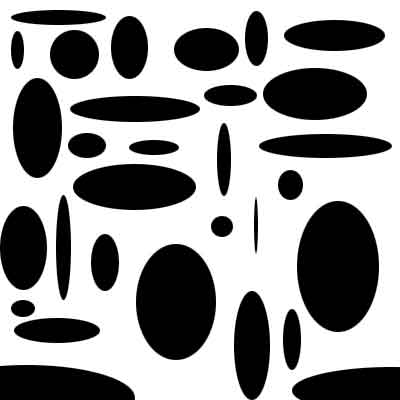
3. Make a new layer and fill the selection in with black:
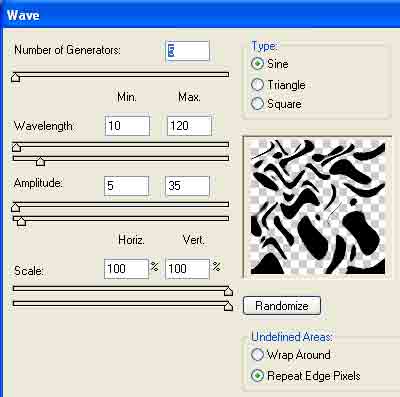
4. Apply Filter>Distort>Wave with these settings:
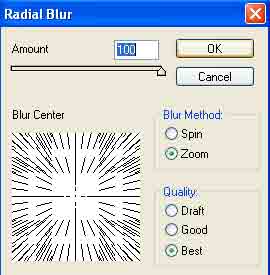
5. Now apply Filter>Blur>Radial Blur:
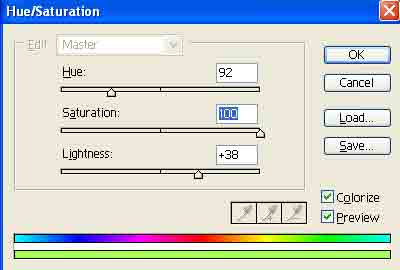
6. Press CNTRL+U and use these colors settings or adjust to make a color that suits you:
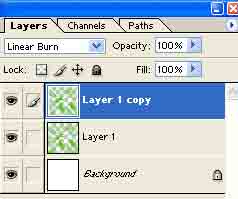
7. Duplicate the layer and change the Blending Change to Linear Burn:
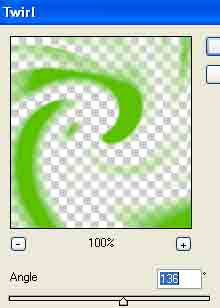
8. Apply Filter>Distort>Twirl to the Linear Burn layer with these settings:
9. Duplicate the layer one more time and add a little more Filter>Distort>Twirl.
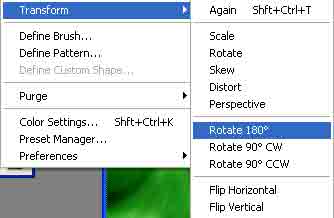
10. Duplicate the layer again and rotate it:
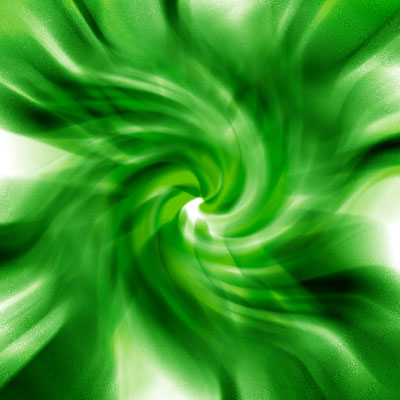
Final: