Her
Home
Photoshop Tutorials
Web Layout
Smooth Borders
Smooth Borders
Author: MickM.com
Author's URL:
www.mickm.com
More by this author
Added:
Apr 25, 2005
Rating:
Level:
Experienced
Software: Photoshop
From sharp edges to smooth round ones...
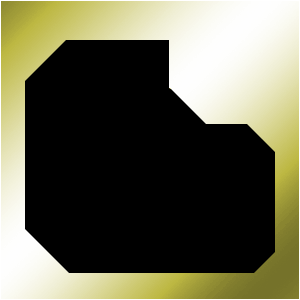
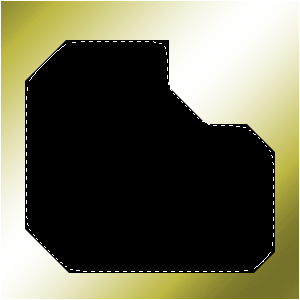
Create a new layer in your document with a shape with sharp edges;
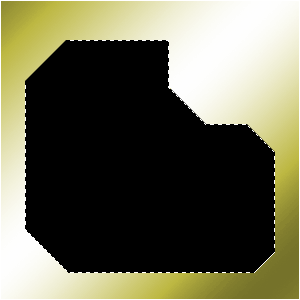
Get the Magic Wand-tool and select the black (or whatever color you have...);
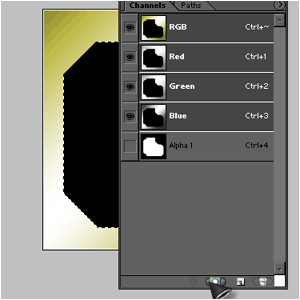
GOTO WINDOW>CHANNELS and click
this
button in the pop-up;
You should see a black and white-image of your shape;
Now GOTO FILTER>BLUR>GAUSSIAN BLUR and add a blur that makes the edges quite round;
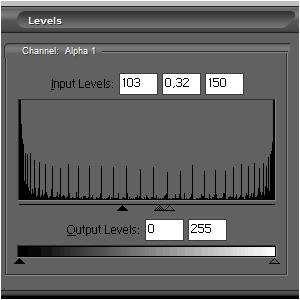
Press CTRL+L and set it to this: (NOTE: This depends on how big your blur was.. Try to get the arrows in the middle eather way.)
Select the shape with the Magic Wand-Tool and click on the top layer of your Channels-popup;
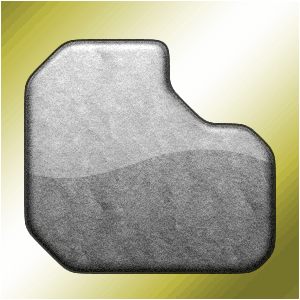
Fill the selection with any color and delete the layer with the sharp edges;
Now add any layer-style needed for your round shape...





 Level: Experienced Software:
Photoshop
Level: Experienced Software:
Photoshop 