Her
Home
Photoshop Tutorials
Drawing Techniques
Create a Bomb
Create a Bomb
Author: MickM.com
Author's URL:
www.mickm.com
More by this author
Added:
Apr 25, 2005
Rating:
Level:
Experienced
Software: Photoshop
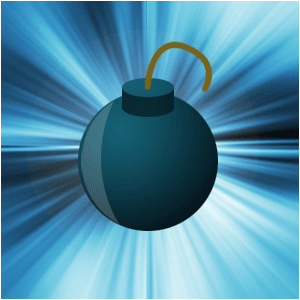
Create a cartoony bomb like the ones in Zelda: Windwaker
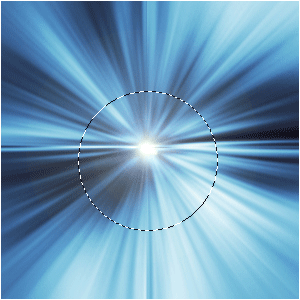
Create a document, set a nice background and select with the Circular Marquee-Tool a circle;
Fill it with a desired color or gradient; (NOTE: I used dark-blue and black)
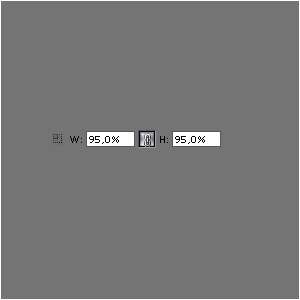
Create a new layer, select the orb once more and goto SELECT>TRANSFORM SELECTION and set it to this:
Fill it with white on the new layer;
Use the Circular Marquee-Tool to create a larger circle and press delete on the white-layer;
Lower the opacity (NOTE: You can also set it to "overlay" if you want a more realistic touch to it..);
Create a small circle on a new layer on top of everything with the same gradient/color as the bomb;
Copy the layer and lower the original 30-60 pixels and make it black (NOTE: Press CTRL+U and lower the lightness);
Select the move-tool and click the dark layer, press ALT+"arrow up" until you reach the other circle;
Draw with a 5 pixel-brush a brown wire coming from the bomb;
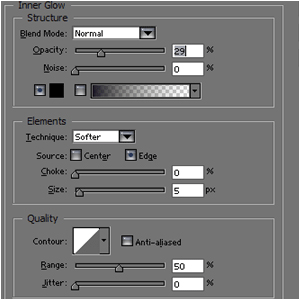
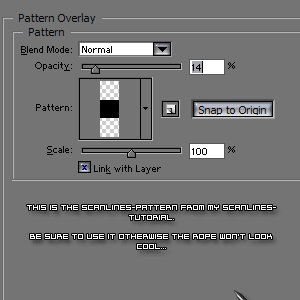
Add these layer-styles to it;
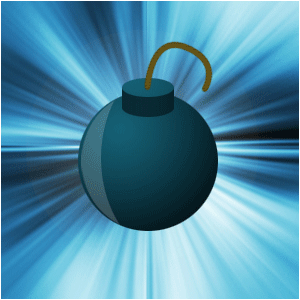
There you have it... a bomb!
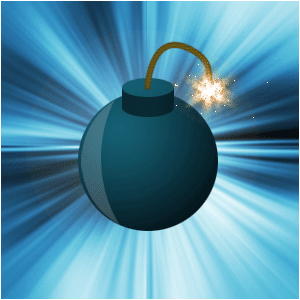
Oh-no, it's gonna explode :P








 Level: Experienced Software:
Photoshop
Level: Experienced Software:
Photoshop 