Follow these guidelines to create the signature.
1. Make a signature and add a text-layer (Make sure the layer doesn't have any layer-style)
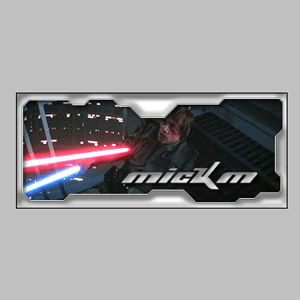
2. Create a new layer;
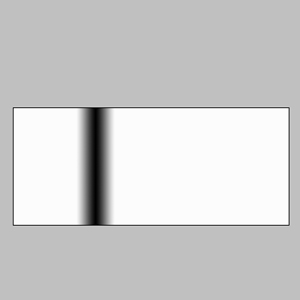
Grab your gradient-tool and set it to Reflected Gradient

3. Create something like this and press: Ctrl+I
4. Press: Ctrl+U and set it to your favourite color;
Press Ctrl+G and set the blending option to "Lighten";
And press this button
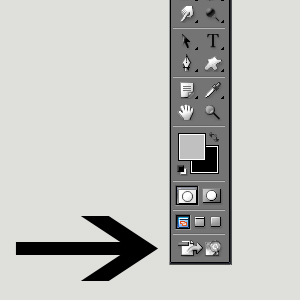
5. When in Image-Ready, select the gradient-layer;
Move it all the way out of the text so that you can't see it (left);
Press this button and select "New frame"
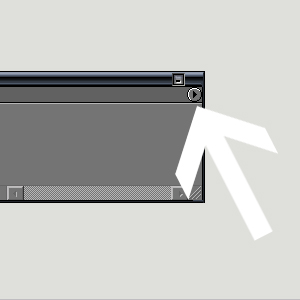
6. Press right until you see the gradient move to the other side of the text-area;
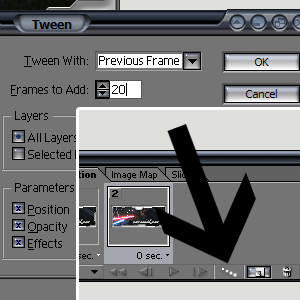
Press this button and select these options
7. Save Optimised as, and it should look like this