Animate some satin like my header!
Create a new image, and make a layer with an object (Not Black!) where you wanna add this effect to...
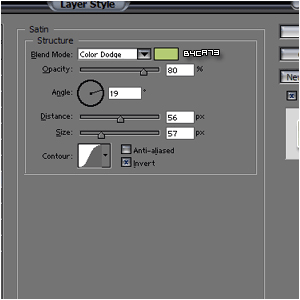
Add any layer-styles you want, just remember to add a satin
like the picture below: (NOTE: You CAN choose a different satin-color!)
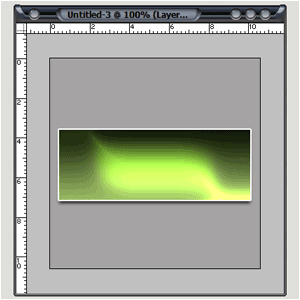
Once you've done that, you shoudl see a funny shine over your
image, like mine below: (NOTE: My image is different. This does not
matter, if you follow the instructions, you WILL get the same effect!)
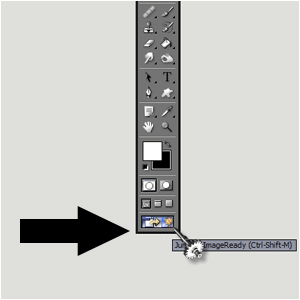
Hop on to Image-Ready by clicking on this button:
When in IR, goto the layer-palette and add a satin again(!!!)
Your click will make this window pop up:
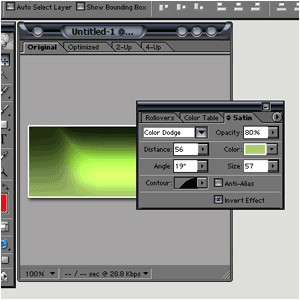
Lower the opacity to 0% and create a new layer wich has 80% again
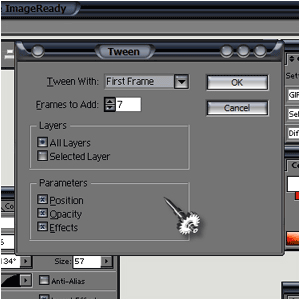
Click the tween-button (The button next to the layer-button) and make it tween the previous image with 7 layers:
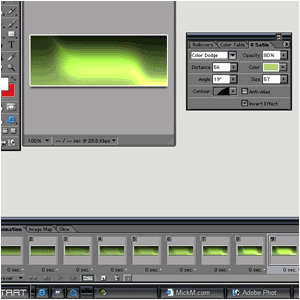
You could add another layer, change the angle and stuff, or you can just tween the last image with 7 frames to the 1st frame:
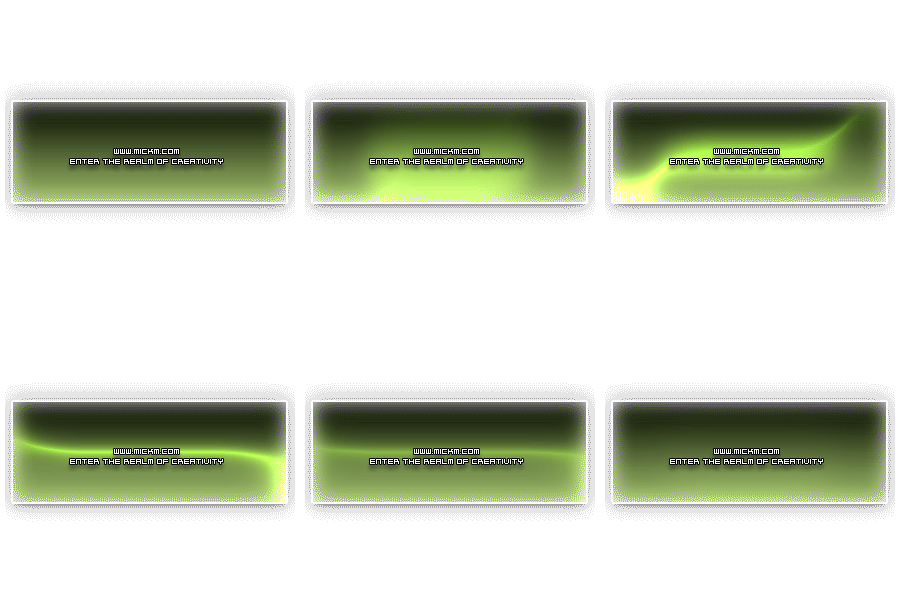
You can make a million things out of it, like my header of this stupid thing below :P
If you have any questions about this effect and how to be more creative, go to my forum and ask me anything you like...


 Level: Professional Software:
ImageReady Photoshop
Level: Professional Software:
ImageReady Photoshop 