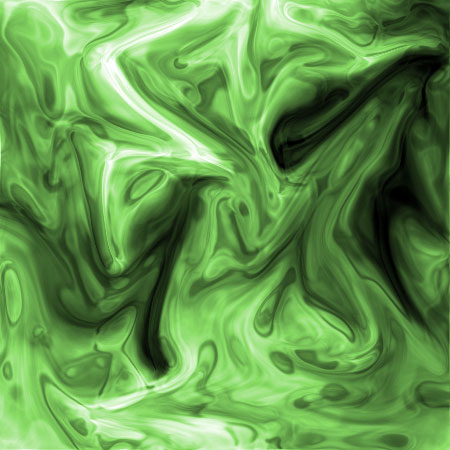
1. Create a new document Ctrl+N, make the size 450x450 pixels
2. Go to Filer -> Render -> Clouds
3. Filter -> Liquify, Play around with this abit until you get something you like
4. Duplicate Layer
5. Filter -> Sketch -> Chrome, settings: Detail-5 and smoothness-10
6. Set mode to Overlay and Opacity to 50%
7. Merge layers (Ctrl+E), then click Ctrl+U and play around with colors until you like what you've got
8. Finaly go to Image -> Adjustment -> Auto Levels to get the 'IT' ;)
Now you are done and you picture should look somthing like this: