1. Make a new image (ctrl+n), in this example i have used 477x250 pixels. Make the background black.
2. Click on Filter > Noise > Add Noise, set Amount to 400, set Distribution to Gaussian and check the checkbox at Monochromatic.
3. Click on Filter > Blur > Radial Blur, set Amount to 100, set Blur Method to Zoom and Quality to Best, OK
4. Press CTRL+F to repeat the Radial Blur.
5. Click on Filter > Artistic > Plastic Wrap, OK.
6. Press CTRL+U, set Hue to 235, and check the checkbox 'Colorize' down-right, OK.
7. Duplicate the layer, select the new layer. Click on Edit > Transform > Rotate 180. Set the 'Blend Mode' of the layer to 'Overlay'. (look at the image below)
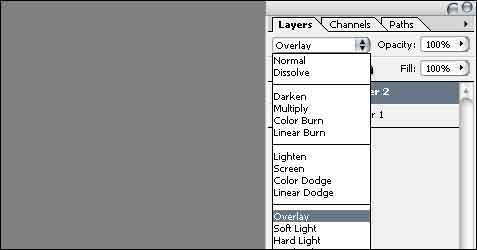
8. Press CTRL+U, set Hue to 125 and Saturation to 75.
9. Duplicate the second layer, click on Filter > Artistic > Plastic Wrap, OK.
10. Change the blending option of the new layer to 'Luminosity' and set Opacity to 33%.
Here is my final result: