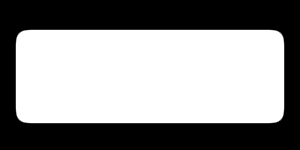
In this easy tutorial im gonna show you how to make rounded corners.
1. Begin with a new file, size and color doesn´t matter, I chose 300x150 and a black background color. Then create a new layer in the layers palette.
2. Now take the Rectangular Marquee Tool and draw out a rectangle.
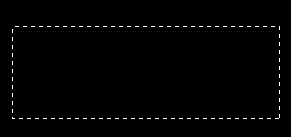
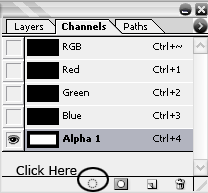
3. Then go the channels palette, Window>Channels and click (1) on Save selection as channel, then click (2) on the Alpha 1 channel.
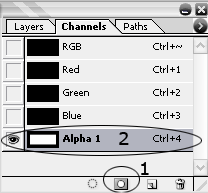
4. Press Ctrl+D to deselect, then go to Filter>Blur>Gaussian Blur, and for my rectangle I set the Radius to 6 pixels, but if you did a larger shape you might have to set the Radius higher. Now should it look something like this.
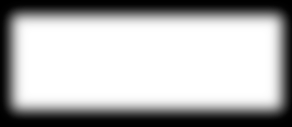
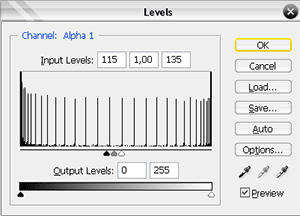
5. Now press Ctrl+L to get the Levelsbox up.
6. Then click on Load channel as selection.
7. Almost done, go back to the layers palette and click on layer1, then right click inside the rectangle and choose Fill. That´s it you are done!.
This is what I came up with.