1. Begin with a new file in greyscale, then take the Text Tool and type in your text with black.

2. Press Ctrl+E to merge down the layer. Then go to Filter>Blur>Gaussian Blur and set the radius to 1,5 Pixels.
3. Then go to Image>Adjustments>Invert or press Ctrl+I, then rotate the image go to Image>Rotate Canvas>90 CW, then go to Filter>Stylize>Wind and do this settings.
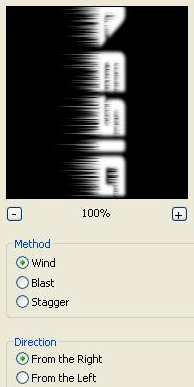
4. Then rotate back the image, Image>Rotate Canvas>90 CCW
Now should it look like this.

5. Then go to Filter>Stylize>Solarize, then change the image to indexed color to do that go to Image>Mode>Indexed Color, then go to Image>Mode>Color Table and chose Black Body.
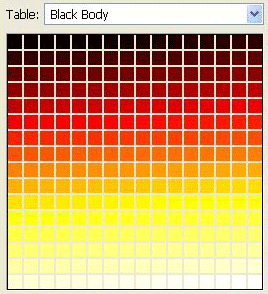
6. Then change the image to RGB Color, Image>Mode>RGB Color, then press Ctrl+U and do this settings.
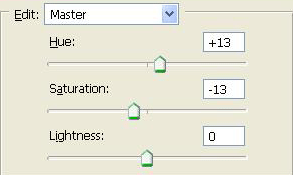
And you are done!
This is what i came up with.