1. You will need a new image, 300x300 pixels and a white background will do nicely.
2. Apply Filter > Render > Clouds.
3. Apply Filter > Render > Difference Clouds about 10-15 times until you get something with a lot of contrast.
4. Press Ctrl + L to bring up the levels dialogue, and select Auto. May not make a lot of difference for some people.
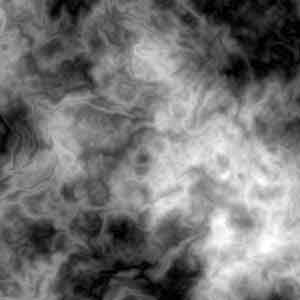
5. Now press Ctrl + U and check colourize. Select a deep red a little like mine. Add some saturation too.
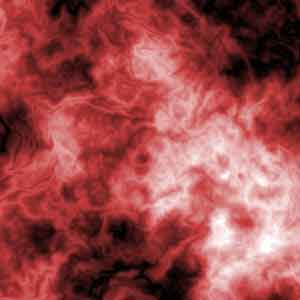
6. Duplicate this layer.
7. Rotate it 90 degrees CW, by Edit > Transform..
8. Press Ctrl + U for this layer too, select colourize and choose a darkish orange.
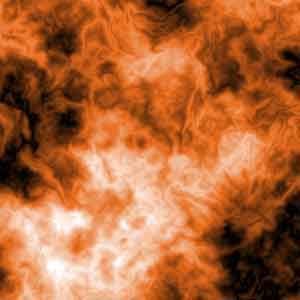
9. Duplicate the orange layer now.
10. Rotate this 90 degrees CW, by Edit > Transform..
11. Press Ctrl + U for this layer too, select colourize and choose a light yellow.

12. Now set the middle orange layer Blending Mode to Lighten.
13. Set the top yellow layer Blending Mode to Overlay.
14. Merge the 3 layers down into one layer.
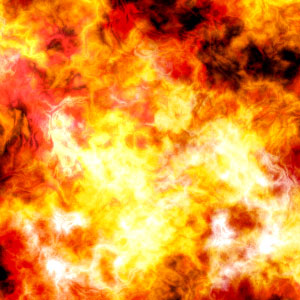
15. You can also adjust the contrast by Image > Adjustments > Brightness/Contrast to give it a little more depth. Here's my final..