

1. Create a new document. I am using 600x400 pixels with a #000033 background.
2. Create a new layer.
3. Use the Rectangular Marquee tool, draw a shape up the top of your image, and fill it with #CCCCCC.
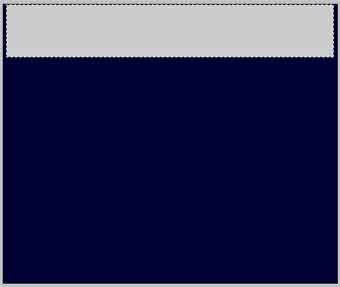
4. Press Ctrl + D to deselect.
5. Now the easiest way to achieve the beat up look, is by using some grunge brushes. Head on over to Tribe Radio, and they have some nice grunge brushes you can download for free. Now using the eraser tool, select one of your grunge brushes, and rip up the sides of the box a little. Here is mine, something similar will do nicely.

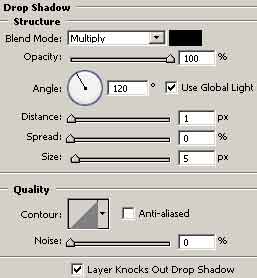
6. Now right click on the layer, and select Blending Options. Go to Drop Shadow and copy my settings.
7. Create a new layer above your background layer, and below your grey box layer.
8. Using the Rectangular Marquee tool again, make a selection not as wide as the grey box and fill it with a light yellow colour, i used #F2EBDB.
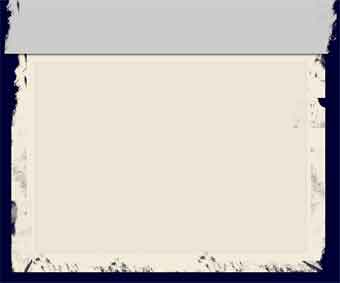
9. Time to beat up the yellow box now. Get your eraser tool out, and use a different grunge brush if possible. Here is mine so far.
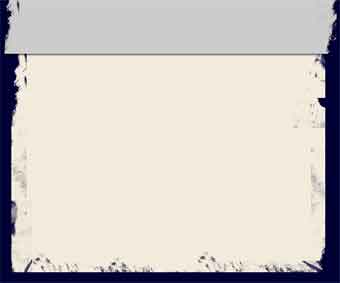
10. Right click on the light yellow box layer, and select Blending Options, and apply the same settings as before.
11. Create a new layer on top of your existing layers.
12. Set the opacity for this new layer to 10%.
13. Press d to reset your colour palette.
14. With the Pencil Tool and a 1px hard brush, draw a box inside the yellow rectangle, like so..
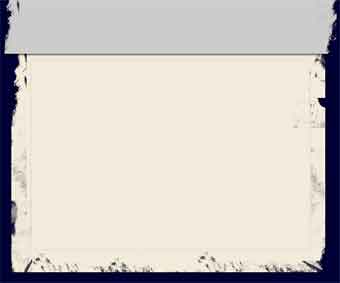
15. Now using the Rectangular Marquee tool, make a selection inside the box you just drew.
16. Ok, now create a new image (DON'T close the other one though ;). 5x5 pixels with a transparent background.
17. Zoom in to 1600%.
18. Draw a diagonal line from corner to corner. Here's mine..

19. Now you can go to Edit > Define Pattern and give it a nice name.
20. You can close this document, and return to your layout document.
21. With the selection selected, go to Edit > Fill and select your pattern. Leave Blending Mode to Normal and Opacity on 100%. Here is mine.
22. Finally add some text to the top, and add a few touchups. I deleted some of the excessive beatup edges, and added some splats to the header. Hope you enjoyed this tutorial. Click on the image below for the fullsize preview.
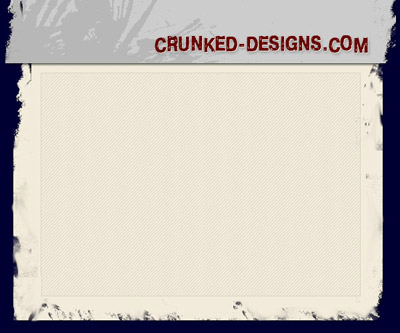 Click to enlarge |
